Long time ago I blogged the topic of how to create custom control flow component in SSIS. In those posts I demonstrated how to build the control flow task by a very simple component but without any execution logic.
Recently I started to upgrade my old jobs from 2012 to 2014 version. So to demonstrate how to design the execution logic, I uploaded the source code of my report execution task onto the Github. You can access the C# project here.
The whole project was created by following the same routine I posted at part1, part2, part3, and part4. So hopefully it can give you some general ideas when you want to create your own control flow task. You do not need to follow steps listed in my posts: in a real world scenario, you can create the task by using just one class library project, simply add Winform into the project.
Feel free to modify the source code of the project if you want to adopt it in your own scenario: just follow the instruction in the readme and build the project into your SSIS task folder:
If you are using other version of SQL Server, e.g. 2008R2 or 2012, you can still use it. Because the task is built on top of ReportService2010 and ReportExecution2005 web services, you can build you own version by referencing correct Microsof.SqlServer.ManagedDTS and Microsoft.SqlServer.Dts.Design. By default installation, you should find them at the SDK folder: ...\Microsoft SQL Server\<SQL version>\SDK\Assemblies\.
Unfortunately there is no simple solution to convert the task to support SSRS2005 or SSRS2008, because they are built based on ReportingService2005/2006 web services. So to get the task fully support these two versions, you have to rebuild the web service reference and fix the conflict in the project.
One last word is, please always do the test before deploy it into your production, it is at your own risk if you decide to use it in your production environment.
Showing posts with label SSRS. Show all posts
2016-05-16
SSIS Custom Control Flow Task - RS Execution Task
Labels:
C#
,
Custom Component
,
SSIS
,
SSRS
Location:
Melbourne VIC, Australia
2016-02-08
Control Number of Rows per Page in SSRS
This is just a quick tour to show you how to control
page breaks in SSRS report.
Next
drop a table onto the report, and drag the dataset column into the table and remove empty columns. Your report now should be like demonstration below
Now
in SSDT, go to the lower panel, under the “Row Groups” section, right click
“Details” entry and click “Group Properties”. In the pop up window, navigate to
the “Page Breaks” section, check the checkbox “Between each instance of a
group”, and then close the pop up window.
After close the pop up window, leave the “Details” entry in selected status, go to the “Properties” window (which usually docked at the bottom-right corner, if you cannot see it on the IDE, go to the menu bar View – Properties Window). What we need to do now, is expand the “Page Break” under the “Group” section, and change the value of the “Disabled” property.
Expand the dropdown box of the “Disabled” property and select entry “<Expression…>”. On the expression editor window, input expression
Sometimes you may want to control number of rows on each
page of the report, for example, you want to put 10 rows on each page if the rendering extension is pdf. To do that, you can
work it out by using TSql, or simply you can just use SSRS to do it.
Now assume we have a query like below, and we want to
control number of rows per page on the report.
use staging
go
;with cte as
(
select 1 as RowNbr
union all
select RowNbr + 1
from cte
where RowNbr < 50
)
select RowNbr from cte
Firstly let’s get a blank report ready by adding data source
and dataset.
Now add a parameter “RowNbr” to let user input number of
rows needs to be displayed on each reporting page.
After close the pop up window, leave the “Details” entry in selected status, go to the “Properties” window (which usually docked at the bottom-right corner, if you cannot see it on the IDE, go to the menu bar View – Properties Window). What we need to do now, is expand the “Page Break” under the “Group” section, and change the value of the “Disabled” property.
Expand the dropdown box of the “Disabled” property and select entry “<Expression…>”. On the expression editor window, input expression
=IIF(Fields!RowNbr.Value mod Parameters!RowNbr.Value = 1, false, true)
This basically tells the report after how many rows
(controlled by report parameter) we would like page break to occur.
So that is all. Time to run the report and input number of
rows you want to put on each page. Quite simple, isn’t it? :P
2015-12-30
Report SSRS report definition from TSQL
Within this holiday season, it is really difficult to bring on a topic relates to techs. So I decided to make it simple and short: let’s talk about how to manage reports by T-SQL.
If you had read my previous posts, I had demonstrated how to read and modify report definitions by C# codes. But there could be situations that we want to read report definitions for specific purpose, e.g. report documentation.
To document the report definition, try below codes (assume there is a report named "test report"):
It them will give you result like below screenshot:
The only thing needs to be noticed is about the XML namespace declaration. As shown above, the "2010/01" is for SSRS 2012. Depends on the edition of the SSRS you are using, you might need to change the declaration a bit. For instance, if the report was created from SSRS 2008, you need to change the definition to "2008/01".
Simple and easy, isn't it?
So that is it. The last day of 2015, and last post of 2015. Happy New Year!
If you had read my previous posts, I had demonstrated how to read and modify report definitions by C# codes. But there could be situations that we want to read report definitions for specific purpose, e.g. report documentation.
To document the report definition, try below codes (assume there is a report named "test report"):
USE ReportServer
go
;WITH XMLNAMESPACES
(
DEFAULT
'http://schemas.microsoft.com/sqlserver/reporting/2010/01/reportdefinition',
'http://schemas.microsoft.com/SQLServer/reporting/reportdesigner'
AS rd
)
SELECT cte.name as ReportName
, ds.value('(@Name)[1]', 'VARCHAR(250)') as DatasetName
, ds.value('(Query/DataSourceName)[1]','VARCHAR(250)') as DataSourceName
, ds.value('(Query/CommandText)[1]','VARCHAR(250)') as Query
, fd.value('(@Name)[1]','VARCHAR(250)') as FieldName
, fd.value('(DataField)[1]','VARCHAR(250)') as DataField
, fd.value('(rd:TypeName)[1]','VARCHAR(250)') as DataType
FROM
(
SELECT C.Name
,CAST(CAST(C.Content as VARBINARY(MAX)) as xml) AS reportXML
FROM ReportServer.dbo.Catalog C
WHERE C.Content is not null
AND C.Type = 2 and c.Path like '%test report%'
) cte
CROSS APPLY reportXML.nodes('/Report/DataSets/DataSet') r(ds)
CROSS APPLY ds.nodes('Fields/Field') f(fd)
ORDER BY name
It them will give you result like below screenshot:
The only thing needs to be noticed is about the XML namespace declaration. As shown above, the "2010/01" is for SSRS 2012. Depends on the edition of the SSRS you are using, you might need to change the declaration a bit. For instance, if the report was created from SSRS 2008, you need to change the definition to "2008/01".
Simple and easy, isn't it?
So that is it. The last day of 2015, and last post of 2015. Happy New Year!
Labels:
SQL Server
,
SSRS
,
T-SQL
Location:
Melbourne VIC, Australia
2015-07-16
SSRS - Build a "dropdown" box on the report
As we know, SQL Server Reporting Service only provides very limited interactions to end users. Once the report is rendered, the report itself will become a static item. Interactions mostly need to be done from external applications. Well, there are quite a lot external applications can be used to get interactive result, such as PerformancePoint server in Sharepoint. But except for them, there are some ways to make the RS report looks better. So today I would like to show a "dropdown" box in reporting service.
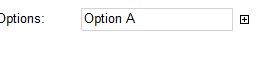
Firstly let's see what will it look like:
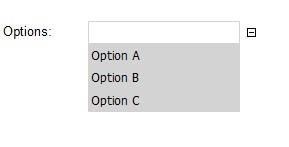
When click the "+" next to the textbox, it will become
Click one of the options in the expanded dropdown box, the selection will appear in the Options textbox
In this case, this "dropdown" box allows multi-selection
To build this type of report, we do not need 3rd party components, customisation of the reporting service, or creation of the CRIs. What we need is just a bit imagination:
The first thing we need to do is to have a report parameter. The purpose of this parameter is to hold the value we selected from the "dropdown" box. In my report, I call it "SelectedValues"
To demonstrat the value we selected, I created a textbox on top of the "dropdown" box, to show the paramter value. Having it or without it will not affect the final result, I created it simply because a long string will be "cut" in the report parameter field, then you cannot see what happened in the design.
As you can see, the expression for this field is quite simple
Now we need have the options for our "dropdown" box. To make it simple, I have the query below
Create a dataset by using this query, then we are ready to format the report:
The final layout of the report looks like below
Now we need to have some special settings. (To make things simple, I will use column number + row number to reference the cell, for example, C1R2 is the grey cell in picture above)
Right click the row group from the bottom panel, go to Visibility tab, and check the radio button "Hide", so by default this row group is hidden from the layout.
Tick the checkbox "Display can be toggled by..." and from the dropdown box, select textbox C2R1. In below screenshot, the item I used to toggle the visibility of the row group, is textbox14
Select the cell C1R1, set its border style to Solid, border color to light grey, and set attribute "CanGrow" to false (we don't want our "dropdown" box expand by its contents)
Now we have a textbox looks like a drondown box. In preview mode, we can see somthing like below. Time to design the action.
Click cell C1R2 (the cell has the value "[Col]"), and from the pop up context menu, select "Text Box Properties".
Go to Action tab, select radio button "Go to report". In the dropdown box "Specify a report", select the report we are working on.
Click "Add" button under this dropdown box to add a parameter. You should see the parameter "SelectedValues" under the parameter Name dropdown list.
Next to the parameter name, we need to have the parameter value passed into the report. Because I want to make a multi-selection "dropdown" box, what I did is click the small "fx" button, in the pop up expression window, input the expression:
So what we did here, is we created a drill through action on the cell C1R2, when click this cell, it will go to itself with the current report parameter value, and the cell value.
That's it. Now you have a "dropdown" box on your report. The parameter values will be passed into the the report itself continually, like screenshot shows below:
Certainly there are many other ways to improve this "dropdown" box. For example, in this "dropdown" box we can select "Option" multi times, make the result ugly. To fix it, we can fix it by using "replace" function in the parameter expression.
There are lot more to improve, certainly. But what I want to show you, is by using some native functions in the reporting service, we can still build some interaction behavious. Just like when I chat with my friends, the technology could have the boundary, but our imagination is endless :D
Firstly let's see what will it look like:
When click the "+" next to the textbox, it will become
Click one of the options in the expanded dropdown box, the selection will appear in the Options textbox
In this case, this "dropdown" box allows multi-selection
To build this type of report, we do not need 3rd party components, customisation of the reporting service, or creation of the CRIs. What we need is just a bit imagination:
The first thing we need to do is to have a report parameter. The purpose of this parameter is to hold the value we selected from the "dropdown" box. In my report, I call it "SelectedValues"
To demonstrat the value we selected, I created a textbox on top of the "dropdown" box, to show the paramter value. Having it or without it will not affect the final result, I created it simply because a long string will be "cut" in the report parameter field, then you cannot see what happened in the design.
As you can see, the expression for this field is quite simple
=Parameters!SelectedValues.Value
Now we need have the options for our "dropdown" box. To make it simple, I have the query below
select 'Option A' as Col
UNION ALL
select 'Option B' as Col
UNION ALL
select 'Option C' as Col
Create a dataset by using this query, then we are ready to format the report:
- Put a tablix component onto the report
- Change the tablix component to 2 x 2 size
- The row group has the col value from the dataset
- The title row has the expression to show the parameter "SelectedValues" value
- Set the tablix border to none
- Format background color for the first cell of the row group to grey
The final layout of the report looks like below
Now we need to have some special settings. (To make things simple, I will use column number + row number to reference the cell, for example, C1R2 is the grey cell in picture above)
Right click the row group from the bottom panel, go to Visibility tab, and check the radio button "Hide", so by default this row group is hidden from the layout.
Tick the checkbox "Display can be toggled by..." and from the dropdown box, select textbox C2R1. In below screenshot, the item I used to toggle the visibility of the row group, is textbox14
Select the cell C1R1, set its border style to Solid, border color to light grey, and set attribute "CanGrow" to false (we don't want our "dropdown" box expand by its contents)
Now we have a textbox looks like a drondown box. In preview mode, we can see somthing like below. Time to design the action.

Click cell C1R2 (the cell has the value "[Col]"), and from the pop up context menu, select "Text Box Properties".
Go to Action tab, select radio button "Go to report". In the dropdown box "Specify a report", select the report we are working on.
Click "Add" button under this dropdown box to add a parameter. You should see the parameter "SelectedValues" under the parameter Name dropdown list.
Next to the parameter name, we need to have the parameter value passed into the report. Because I want to make a multi-selection "dropdown" box, what I did is click the small "fx" button, in the pop up expression window, input the expression:
=IIF(ISNOTHING(Parameters!SelectedValues.Value), Fields!Col.Value, Parameters!SelectedValues.Value + "," + Fields!Col.Value)
So what we did here, is we created a drill through action on the cell C1R2, when click this cell, it will go to itself with the current report parameter value, and the cell value.
That's it. Now you have a "dropdown" box on your report. The parameter values will be passed into the the report itself continually, like screenshot shows below:
Certainly there are many other ways to improve this "dropdown" box. For example, in this "dropdown" box we can select "Option" multi times, make the result ugly. To fix it, we can fix it by using "replace" function in the parameter expression.
There are lot more to improve, certainly. But what I want to show you, is by using some native functions in the reporting service, we can still build some interaction behavious. Just like when I chat with my friends, the technology could have the boundary, but our imagination is endless :D
2015-06-26
SSRS Replace Embedded Image Dynamically Part 2 - Do the Replacement
Continue to the part 1 of this topic, we are ready to start the coding task. But before start the coding task, we need at least a report for our job.
As you can see, I create a simple report in report server
When open the report from Report Builder, you can see nothing but a google image in the report. This is the report will be used for demonstration purpose
We need another image to do the replacement job, so I just grab a random image and put it into a temporary folder.
So everthing is ready, time to go back to the Visual Studio project and then start the coding.
Firstly, in the project I create the winform like below.
Controls used in the form are:
No we can start to code the search button click event. The basic concept is to get the report definition from user input, then drill down until we find what we need. To demostrate what we need:
First of the first is to grab the report deinition, in my code I created a method to load report definition into previously declared report class variable:
Now we need to ind embedded image in the report definition. To do that, I started to work on the button click task:
At this stage, if we try to debug the project by pressing F5, we should be able to get the image listed in the listbox, as shown below
Now stop the debug mode and return to the project. Time to code the replace event:
After we finish above code, it is ready to do the replacement:
The original report looks like this:
Now find the image embedded in this report, input the replacement image path in the textbox, and click replace button
Go back to the report and refersh it, the image gets replaced :D
As you can see, I create a simple report in report server
When open the report from Report Builder, you can see nothing but a google image in the report. This is the report will be used for demonstration purpose
We need another image to do the replacement job, so I just grab a random image and put it into a temporary folder.
So everthing is ready, time to go back to the Visual Studio project and then start the coding.
Firstly, in the project I create the winform like below.
Controls used in the form are:
- txtServer: the textbox to capture reporting server name
- txtReportPath: the textbox to capture SSRS report path
- btnSearch: the button to pull the image definition from the report
- lstImages: the listbox control to hold images obtained from btnSearch
- txtImagePath: the textbox to input the replace image path
- btnReplace: the replace button to replace the image
Report report;
RS2010.ReportingService2010 reportservice;
int imgindex;
No we can start to code the search button click event. The basic concept is to get the report definition from user input, then drill down until we find what we need. To demostrate what we need:
First of the first is to grab the report deinition, in my code I created a method to load report definition into previously declared report class variable:
private void LoadReport(string path)
{
byte[] bytes = reportservice.GetItemDefinition(path);
if (bytes != null)
{
XmlSerializer serializer = new XmlSerializer(typeof(Report));
using (MemoryStream stream = new MemoryStream(bytes))
{
report = (Report)serializer.Deserialize(stream);
}
}
}
Now we need to ind embedded image in the report definition. To do that, I started to work on the button click task:
private void button1_Click(object sender, EventArgs e)
{
string servername = txtServer.Text;
reportservice = new ReportingService2010();
reportservice.Credentials = System.Net.CredentialCache.DefaultCredentials;
reportservice.Url = "http://" + servername + "/reportserver/reportservice2010.asmx";
string ReportPath = txtReportPath.Text;
LoadReport(ReportPath);
if (report == null)
{
MessageBox.Show("error, cannot load report definition");
return;
}
List<ItemsChoiceType118> reportItems = new List<ItemsChoiceType118>(report.ItemsElementName);
imgindex = reportItems.IndexOf(ItemsChoiceType118.EmbeddedImages);
if (imgindex < 1)
{
MessageBox.Show("cannot find image");
return;
}
EmbeddedImagesType imgs = (EmbeddedImagesType)report.Items[imgindex];
lstImages.DataSource = imgs.EmbeddedImage;
lstImages.DisplayMember = "Name";
}
At this stage, if we try to debug the project by pressing F5, we should be able to get the image listed in the listbox, as shown below
Now stop the debug mode and return to the project. Time to code the replace event:
private void btnReplace_Click(object sender, EventArgs e)
{
if (report == null || imgindex == 0)
{
return;
}
string base64;
Image replacement = Image.FromFile(txtImagePath.Text);
MemoryStream ms = new MemoryStream();
replacement.Save(ms, ImageFormat.Png);
base64 = Convert.ToBase64String(ms.ToArray());
ms.Close();
ms = null;
foreach (var item in ((EmbeddedImagesType)report.Items[imgindex]).EmbeddedImage)
{
item.Items[1] = base64;
}
XmlSerializer serializer = new XmlSerializer(typeof(Report));
using (MemoryStream stream = new MemoryStream())
{
serializer.Serialize(stream, report);
stream.Position = 0;
byte[] bytes = stream.ToArray();
Warning[] warnings = reportservice.SetItemDefinition(txtReportPath.Text, bytes, null);
}
}
After we finish above code, it is ready to do the replacement:
The original report looks like this:
Now find the image embedded in this report, input the replacement image path in the textbox, and click replace button
Go back to the report and refersh it, the image gets replaced :D
Labels:
C#
,
Embedded Image
,
SSRS
Location:
Melbourne VIC, Australia
2015-06-18
SSRS Replace Embedded Image Dynamically Part 1 - Prepare the Project
Back to few months ago, one of our clients had a re-brand campaign. As a result, all of its related reports needs to be modified, because of the logo change.
As you know, in the native reporting service, there are three ways to hold an image on the report:
In my case, if the logo was created by using the 2nd way or the 3rd way, it is simple to change: just replace the referenced target. But there were some reports are using embedded image. It means we have to open the report in edit mode, and verify the image storage type, and then change it if applicable. Time consuming, isn't it?
If you google the question, an old post (here) gives a way to extract embedded images from the RS report. However I could not find the source code though author mentioned "you can download the source code using the link at the top" :(
But at least it gives me some thoughts. So I am going to show you how to dynamically replace the embedded images of the RS report through C# code.
Firstly, let's create the project and add references we need.
Now to simplify our job, we need to grab the report definition from Microsoft. You can find the definition here. Open this xsd in the web broswer and save this into the project folder.
Time to generate class definition from our downloaded XSD. Open Visual Studio command prompt window, navigate to the project folder, and type
The cs file should be generated within the project folder.
Now we add this newly created class file into our project, in my project, it is ReportDefinition.cs
Next step is to add web service reference to our reporting service. In the project, right click Service References folder and select "add service references"
On the pop up window, click "Advanced..." button located at the bottom right corner.
now we get the 2nd pop up window, at the bottom of this window, click button "Add Web References"
Finally we reach the window we want. in this window, input our reporting service address, it should be http://<server>/reportserver/reportservice2010.asmx. As you can see in above window I named it as RS2010.
After click "Add Reference" button, your project should look like below
Before we do some coding jobs, a finaly step is to add using clauses we need:
using System.IO;
using SSRS_ReplaceImages.RS2010;
using System.Xml.Serialization;
using System.Drawing.Imaging;
After you add these using clauses, we are ready to replace the image in the report, which will be covered in my next post. :P
As you know, in the native reporting service, there are three ways to hold an image on the report:
- Embedded Image saved in the report
- Database Stored Image saved in the database
- External Image can be in a network shared folder or a web site hosted image
In my case, if the logo was created by using the 2nd way or the 3rd way, it is simple to change: just replace the referenced target. But there were some reports are using embedded image. It means we have to open the report in edit mode, and verify the image storage type, and then change it if applicable. Time consuming, isn't it?
If you google the question, an old post (here) gives a way to extract embedded images from the RS report. However I could not find the source code though author mentioned "you can download the source code using the link at the top" :(
But at least it gives me some thoughts. So I am going to show you how to dynamically replace the embedded images of the RS report through C# code.
Firstly, let's create the project and add references we need.
Now to simplify our job, we need to grab the report definition from Microsoft. You can find the definition here. Open this xsd in the web broswer and save this into the project folder.
Time to generate class definition from our downloaded XSD. Open Visual Studio command prompt window, navigate to the project folder, and type
xsd /c /n:SampleRDLSchema ReportDefinition.xsd
The cs file should be generated within the project folder.
Now we add this newly created class file into our project, in my project, it is ReportDefinition.cs
Next step is to add web service reference to our reporting service. In the project, right click Service References folder and select "add service references"
On the pop up window, click "Advanced..." button located at the bottom right corner.
now we get the 2nd pop up window, at the bottom of this window, click button "Add Web References"
Finally we reach the window we want. in this window, input our reporting service address, it should be http://<server>/reportserver/reportservice2010.asmx. As you can see in above window I named it as RS2010.
After click "Add Reference" button, your project should look like below
Before we do some coding jobs, a finaly step is to add using clauses we need:
using System.IO;
using SSRS_ReplaceImages.RS2010;
using System.Xml.Serialization;
using System.Drawing.Imaging;
After you add these using clauses, we are ready to replace the image in the report, which will be covered in my next post. :P
Labels:
C#
,
Embedded Image
,
SSRS
Location:
Melbourne VIC, Australia
2015-04-15
SSRS - Report Performance Tuning
Today I just want to blog experiences I had when doing SSRS report performance tuning.
The story is like this, we have a horrible report, This report contains 2 sub-reports: one is for the overall chart which is fine, the 2nd sub-report contains 4 matrices, each matrix has date, week, and quarter column groups, and has business perspectives at row groups.
The report is a campaign to date report, which shows current quarter in weekly breakdowns, and suppress previous quarters into Quartly Total. Therefore at the beginning of each quarter the subscription is fine, but when it is close to end of the quarter, 9 out of 10 the execution failed.
Long in short, what I did are
The tricky thing is when I wrote the backend query, I actually made it more complicated. It is because in this particular case, query is fast enough to deliver the data to report server, but processing data is too slow due to complicated grouping conditions in the matrix. So I made some groups at the query level, which slows down the data retrieval time, but improve processing time a lot.
Now some my personal ideas:
Firstly, real world is much tough then the book. We know rules such as "query the data only when you need to", or "retrieve the data you need only". But in real world you have to work it out within business scope.
Secondly, having a big picture is impotant. In this case the report is scheduled as a subscription to run at 6:00AM. So blocking is not a problem when made the query complicated.
Finally, "Best result" is enviornment oriented. For this particular report, sacrificing few seconds in query time gives you 10 times benefits at processing level.
The story is like this, we have a horrible report, This report contains 2 sub-reports: one is for the overall chart which is fine, the 2nd sub-report contains 4 matrices, each matrix has date, week, and quarter column groups, and has business perspectives at row groups.
The report is a campaign to date report, which shows current quarter in weekly breakdowns, and suppress previous quarters into Quartly Total. Therefore at the beginning of each quarter the subscription is fine, but when it is close to end of the quarter, 9 out of 10 the execution failed.
Long in short, what I did are
- Identify the the problem: in this case, it is a matrix to show states, retailers, offers, and rates by date.
- Isolate the problem: I create a dummy report for this matrix so I can compare the performance to my solution
- Work out the solution: I then create a new report by re-write the query and re-design the groups of the matrix
- Compare the performance: one picture worth thousand words
The tricky thing is when I wrote the backend query, I actually made it more complicated. It is because in this particular case, query is fast enough to deliver the data to report server, but processing data is too slow due to complicated grouping conditions in the matrix. So I made some groups at the query level, which slows down the data retrieval time, but improve processing time a lot.
Now some my personal ideas:
Firstly, real world is much tough then the book. We know rules such as "query the data only when you need to", or "retrieve the data you need only". But in real world you have to work it out within business scope.
Secondly, having a big picture is impotant. In this case the report is scheduled as a subscription to run at 6:00AM. So blocking is not a problem when made the query complicated.
Finally, "Best result" is enviornment oriented. For this particular report, sacrificing few seconds in query time gives you 10 times benefits at processing level.
Labels:
Performance Tuning
,
SQL Server
,
SSRS
Location:
Melbourne VIC, Australia
2015-04-07
SSRS - Create a QR report
QR code is becoming popular. So what if we put QR code into the report, such as a contact report with QR codes? Sounds interesting, isn't it? Following steps below you can create a simple report with QR code integrated, no code required!
Firstly we need a report to show some basic contact information. In this example, I just make it very sample, as shown below
Then I drag and drop a tablix control on to the report. After set first few columns, I drop an image into the last column
Now here is the interesting part: the QR code actually is coming from http://qrcode.kaywa.com/. This site can encode your input into QR code (static) and export the result as an image. And for personal use, you can create a free account. So what we need to do is to set the image property to the output of this site
As you can see, I change the image source to external, and then I set the image expression to:
Now run the report:
When you run the report, you may see the warning message:
"Images with external URL references will not display if the report is published to a report server without an UnattendedExecutionAccount or the target image(s) are not enabled for anonymous access."
It is because of reporting service execution account setting. To configue a default reporting service execution account, you can open Reporting Service Configuration Manager, and navigate to Execution Account page, fill in default account information, as shown below.
Firstly we need a report to show some basic contact information. In this example, I just make it very sample, as shown below
Then I drag and drop a tablix control on to the report. After set first few columns, I drop an image into the last column
Now here is the interesting part: the QR code actually is coming from http://qrcode.kaywa.com/. This site can encode your input into QR code (static) and export the result as an image. And for personal use, you can create a free account. So what we need to do is to set the image property to the output of this site
As you can see, I change the image source to external, and then I set the image expression to:
= "http://qrcode.kaywa.com/img.php?s=8&d=" + Fields!name.Value + "%0A" + Fields!site.Value + "%0A" + Fields!mob.Value
Now run the report:
When you run the report, you may see the warning message:
"Images with external URL references will not display if the report is published to a report server without an UnattendedExecutionAccount or the target image(s) are not enabled for anonymous access."
It is because of reporting service execution account setting. To configue a default reporting service execution account, you can open Reporting Service Configuration Manager, and navigate to Execution Account page, fill in default account information, as shown below.
Location:
Melbourne VIC, Australia
2015-03-19
Report Migration - Phantom Connection String in Catalog table
As mentioned in my prior post, I did a SQL Server migration back to 2014. When I did the report migration from server A to server B, I found something worth to be recorded here.
Let's start from beginning, what I have are
What I need to do is to migrate hundreds of reports from SS2008R2 to SS2012, and update all connection strings from SS2008R2 to SS2012.
There were quite a lot ways to do this task, RS utility, report migration tool published by Microsoft (http://www.microsoft.com/en-au/download/details.aspx?id=29560). But because connection string inside the reports needs to be updated as well, I finally decided to write a short C# codes to do the migration. What the code will do is
The code is quite simple, firstly ReportingService2010 web services from both SS2008R2 and SS2012 need to be added. usually it is at http://<ReportServer>/reportserver/reportservice2010.asmx
Now I initialized both source server and target server
Now below code shows how to migrate the report and change the data source connection string. I have made it a bit simpler. In a production enviornment it could be far more complicated
The code works. If you open the report, you can find the report runs correctly, data is coming from SS2012, etc.
BUT
If you open the report via Report Builder, the connection string has been updated. The connection string from report builder will be
DATA SOURCE=<RS2012>;INITIAL CATALOG=REPORTSERVER
However if you query Catalog table by using below statement, You can see the data source coming from Catalog table is still pointing to RS2008R2
I tried this procedure on my VM machine and got the identical result, so I am not quite sure what caused this discrepancy though the report after migration works. If you are accidently reading this thread, and know what happened, please let me know :D
Let's start from beginning, what I have are
The old SQL Server is at 2008R2 version, reporting service is installed by following default setting
- Reporting Service URL: http://<SS2008R2>/reportserver
- Report Catalog DB name: ReportServer
The new SQL Server is 2012, reporting service is installed by following default setting
- Reporting Service URL: http://<SS2012>/reportserver
- Report Catalog DB name: ReportServer
What I need to do is to migrate hundreds of reports from SS2008R2 to SS2012, and update all connection strings from SS2008R2 to SS2012.
There were quite a lot ways to do this task, RS utility, report migration tool published by Microsoft (http://www.microsoft.com/en-au/download/details.aspx?id=29560). But because connection string inside the reports needs to be updated as well, I finally decided to write a short C# codes to do the migration. What the code will do is
- copy the reports from SS2008R2
- deploy the reports to SS2012
- update the data source to SS2012
The code is quite simple, firstly ReportingService2010 web services from both SS2008R2 and SS2012 need to be added. usually it is at http://<ReportServer>/reportserver/reportservice2010.asmx
Now I initialized both source server and target server
RSSource2010 = new RSSource.ReportingService2010();
RSSource2010.Credentials = System.Net.CredentialCache.DefaultCredentials;
RSSource2010.Url = @"http://" + SourceServer + "/reportserver/reportservice2010.asmx";
RSTarget2010 = new RSTarget.ReportingService2010();
RSTarget2010.Credentials = System.Net.CredentialCache.DefaultCredentials;
RSTarget2010.Url = @"http://" + TargetServer + "/reportserver/reportservice2010.asmx";
Now below code shows how to migrate the report and change the data source connection string. I have made it a bit simpler. In a production enviornment it could be far more complicated
//to make it simple, assume the report will be migrated to the root folder, "/"
string TargetPath = "/";
//get source report, here the variable ReportPath is the source report
//we can get it from catalog table (not suggested by MS) or from the webservice
byte[] ReportContents = RSSource2010.GetItemDefinition(ReportPath);
RS2010_Target.Warning[] warnings = null;
try
{
//create the target item
RS2010_Target.CatalogItem TargetItem = RSTarget2010.CreateCatalogItem("Report", "Migrated_Report", TargetPath, true, ReportContents, null, out warnings);
//need to change the data source of the target item to new server
//to make it simple, assume the data source connection string is embeded in the report
//otherwise it could be an expression or reference data source
RS2010_Target.DataSource[] DSs = RSTarget2010.GetItemDataSources(TargetItem.Path);
RS2010_Target.DataSource[] NewDSs = new RSTarget.DataSource[DSs.Count()];
for (int i = 0; i < DSs.Count(); i++)
{
//copy new data source name
RS2010_Target.DataSource NewDS = new RSTarget.DataSource();
NewDS.Name = DSs[i].Name;
//read source report data source
var t = DSs[i].Item.GetType();
if (t.Name == "DataSourceDefinition")
{
RS2010_Target.DataSourceDefinition TargetDSDef = new RSTarget.DataSourceDefinition();
RS2010_Target.DataSourceDefinition SourceDSDef = (RS2010_Target.DataSourceDefinition)DSs[i].Item;
//set target report data source connection string to new server
//set target report data source properties by copying from source
TargetDSDef.ConnectString = ((RS2010_Target.DataSourceDefinition)DSs[i].Item).ConnectString.ToUpper().Replace(SourceServer.ToUpper(), TargetServer.ToUpper());
TargetDSDef.Enabled = true;
TargetDSDef.Extension = ((RS2010_Target.DataSourceDefinition)DSs[i].Item).Extension;
TargetDSDef.CredentialRetrieval = RSTarget.CredentialRetrievalEnum.Integrated;
TargetDSDef.WindowsCredentials = ((RS2010_Target.DataSourceDefinition)DSs[i].Item).WindowsCredentials;
NewDS.Item = (RS2010_Target.DataSourceDefinitionOrReference)TargetDSDef;
NewDSs[i] = NewDS;
}
}
//set the data source
RSTarget2010.SetItemDataSources(TargetItem.Path, NewDSs);
}
The code works. If you open the report, you can find the report runs correctly, data is coming from SS2012, etc.
BUT
If you open the report via Report Builder, the connection string has been updated. The connection string from report builder will be
DATA SOURCE=<RS2012>;INITIAL CATALOG=REPORTSERVER
However if you query Catalog table by using below statement, You can see the data source coming from Catalog table is still pointing to RS2008R2
;WITH XMLNAMESPACES ( DEFAULT 'http://schemas.microsoft.com/sqlserver/reporting/2010/01/reportdefinition', 'http://schemas.microsoft.com/SQLServer/reporting/reportdesigner' AS rd )
SELECT ReportName = name
,DataSourceName = x.value('(@Name)[1]', 'VARCHAR(250)')
,DataProvider = x.value('(ConnectionProperties/DataProvider)[1]','VARCHAR(250)')
,ConnectionString = x.value('(ConnectionProperties/ConnectString)[1]','VARCHAR(250)')
FROM ( SELECT C.Name,CONVERT(XML,CONVERT(VARBINARY(MAX),C.Content)) AS reportXML
FROM ReportServer.dbo.Catalog C
WHERE C.Content is not null and c.Name like '%the report migrated%'
AND C.Type = 2
) a
CROSS APPLY reportXML.nodes('/Report/DataSources/DataSource') r ( x )
ORDER BY name ;
I tried this procedure on my VM machine and got the identical result, so I am not quite sure what caused this discrepancy though the report after migration works. If you are accidently reading this thread, and know what happened, please let me know :D
Location:
Melbourne VIC, Australia
Subscribe to:
Posts
(
Atom
)