Showing posts with label C#. Show all posts

2019-12-19

Retrieve SharePoint Online List by Graph API

Last day in 2019, and last post in 2019.

Actually pulling SharePoint List from Power Query/Power BI is much faster and straightforward. But in some cases, you may still need to follow the traditional ETL way. Hope below script can help you if you need it.

Firstly we need to register the app in Azure AD (Check Here). After create your app, write down 3 ids: tenant id, client id, and the secret. Note the secret will only be exposed to you when you create the app, then it will be masked (though you can always create a new one.)


To allow your app to access the SharePoint list, you need to enable the "Site.Read.All" permission under the Application Permission category, as demonstrated below. Keep in mind though, the "Site.Read.All" permission needs AAD admin's consent.


That is all about the app setup. To query the list, we need to exchange the token by our tenant id, client id, and the secret:

 public class RespToken
        {
            public string token_type { get; set; }
            public int expires_in { get; set; }
            public int ext_expires_in { get; set; }
            public string access_token { get; set; }
        }

        public static string GetAccessToken(string tenentId, string clientId, string clientSecret)
        {
            string token = string.Empty;

            string uriToken = string.Format("https://login.microsoftonline.com/{0}/oauth2/v2.0/token", tenentId);
            string contentType = "application/x-www-form-urlencoded";
            string grantType = "client_credentials";
            string scope = "https://graph.microsoft.com/.default";

            string tmpBody = "grant_type={0}&client_id={1}&client_secret={2}&scope={3}";
            string body = string.Format(tmpBody, grantType, clientId, clientSecret, scope);
            byte[] contents = Encoding.UTF8.GetBytes(body);

            HttpWebRequest request = (HttpWebRequest)WebRequest.Create(uriToken);
            request.ContentType = contentType;
            request.Method = "POST";

            request.ContentLength = contents.Length;
            using (Stream writeStream = request.GetRequestStream())
            {
                writeStream.Write(contents, 0, contents.Length);
            }

            using (HttpWebResponse response = (HttpWebResponse)request.GetResponse())
            {
                using (Stream readStream = response.GetResponseStream())
                {
                    string responseBody = string.Empty;
                    using (StreamReader sr = new StreamReader(readStream))
                    {
                        responseBody = sr.ReadToEnd();
                    }
                    JavaScriptSerializer Serializer = new JavaScriptSerializer();
                    var r = Serializer.Deserialize(responseBody);
                    token = r.access_token;
                }
            }
            
            return token;
        }


Then we follow the routine "search site => search list => get list item":

static void Main(string[] args)
        {

            string tenentId = string.Empty;
            string clientId = string.Empty;
            string clientSecret = string.Empty;
            string siteName = string.Empty;

            string siteId = string.Empty;
            string listId = string.Empty;


            Console.WriteLine("Tenent Id: ");
            tenentId = Console.ReadLine();

            Console.WriteLine("Client Id: ");
            clientId = Console.ReadLine();

            Console.WriteLine("Client Secret: ");
            clientSecret = Console.ReadLine();

            if (string.IsNullOrEmpty(tenentId) || string.IsNullOrEmpty(clientId) || string.IsNullOrEmpty(clientSecret))
            {
                Console.WriteLine("empty value found in mandatory parameters");
                return;
            }

            string token = GetAccessToken(tenentId, clientId, clientSecret);
            Console.WriteLine("Token acquired, query site");
            

            Console.WriteLine("Input site name for search: ");
            siteName = Console.ReadLine();

            string uriSite = $"https://graph.microsoft.com/v1.0/sites?search={siteName}";

            HttpWebRequest request = (HttpWebRequest)WebRequest.Create(uriSite);
            request.Method = "GET";
            request.Headers.Add(HttpRequestHeader.Authorization, token);

            using (HttpWebResponse response = (HttpWebResponse)request.GetResponse())
            {
                using (Stream s = response.GetResponseStream())
                {
                    using (StreamReader r = new StreamReader(s))
                    {
                        string contents = r.ReadToEnd();
                        var j = JObject.Parse(contents);
                        siteId = j["value"]
                            .FirstOrDefault(x => x["name"].ToString().ToLower() == "msgraph")["id"]
                            .ToString();

                    }
                }
            }

            if (string.IsNullOrEmpty(siteId))
            {
                Console.WriteLine("error happens, cannot obtain site id");
                return;
            }


            Console.WriteLine($"site id acquired, {siteId}");
            string uriList = $"https://graph.microsoft.com/v1.0/sites/{siteId}/lists";
            request = (HttpWebRequest)WebRequest.Create(uriList);
            request.Method = "GET";
            request.Headers.Add(HttpRequestHeader.Authorization, token);

            using (HttpWebResponse response = (HttpWebResponse)request.GetResponse())
            {
                using (Stream s = response.GetResponseStream())
                {
                    using (StreamReader sr = new StreamReader(s))
                    {
                        string content = sr.ReadToEnd();
                        var jObject = JObject.Parse(content);

                        listId = jObject["value"]
                            .FirstOrDefault(x => x["name"].ToString().ToLower() == "events")["id"]
                            .ToString();
                    }
                }
            }

            if (string.IsNullOrEmpty(listId))
            {
                Console.WriteLine("error occurred, cannot obtains list id");
                return;
            }

            Console.WriteLine($"list id: {listId}");

            Console.ReadLine();

        } 


2019-03-19

Handling Long File Name in Windows

Let's make the question short: on Windows platform, how can you copy the file if the path is too long?

This question is coming from a project I worked on recently. What happened is that quite a few Access Databases are dumped to a network shared folder, and we need to move them to a staging folder for data process. Because the access database is dumped automatically by a 3rd party software, some access databases were saved in an invalid file path (more than 260 characters in file's full name).

The solution is simple: RoboCopy. It is a standard component in Windows now and you can find an explanation of it here. So basically what we need to do, is listing all files from the source folder by time stamp, and then calling the RoboCopy to copy the file. Procedure is simple but just a few things need to have a look:

1. The FileInfo class acts differently by Windows platform
The SSIS package was built on Windows 7 platform (yes, 2019 already I know, but you won't believe how old client's infrastructure is.). On Windows 7 when calling FileInfo's full file name, there will be an IO.PathTooLongException. As demonstrated below, in the try catch block we extract file's name and path if the file's full name is too long, and then construct file's full name and pass it to RoboCopy.


So far so good, but the SSIS package eventually would be triggered on Windows 2012 platform. When we tested the package, the FileInfo's FullName actually returned the full path of the file, and the exception occurred at the directory level, which left us an unhandled exception: So files supposed to raise IO.PathTooLongException were passed to SSIS's File System Task, and obviously, SSIS's File System Task cannot handle File Name Too Long error.


Fixing the error is easy, but it is a good lesson: keeping dev and prod environment identical is critical.

2. RoboCopy can have more than one return code to represent success result.
When calling SSIS's Execute Process Task, only one return code is accepted by default, e.g. 0 by default is treated as success value, return code other than 0 will be treated as failure.

But when you look at RoboCopy's document, you can see RoboCopy's return code is a bitmap. In my situation, we need to set more than one return codes for success value.

We can easily fix this problem by following steps below:

In the Execute Process Task Configuration windows, change FailTaskIfReturnCodeIsNotSuccessValue to False. By setting it to false, Execute Process Task will always report success.


Now keep Execute Process Task selected and go to the Properties window (locate at the bottom-right corner by default, press Ctrl + W then P if you cannot find it), assign a package variable to ExecValueVariable. It will capture the execute result to the variable.


Now you can figure it out, instead of letting Execute Process Task report success or failure, we capture execution result to a variable, then in the Precedent Constraint we can use expression to identify the actual outcome of the RoboCopy.

That is today's post, good experience to find and fix these issues though at the beginning the task was looked so simple.


2018-11-24

Pull Exchange email attachment via Exchange Service Binding

To be honest, I had never thought there would be a need to pull attachment from on-premise Exchange Server via Exchange Service Binding, in the year of 2018. But I was wrong :(

Basically we have two ways to read email from on-premise Exchange. The first option is utilizing Exchange Web Service managed API. It can be used for both on-premise Exchange server and O365 (an example I blogged before). The other option is today's topic: Exchange Service Binding, which by any means, should be avoid! Now let's have a look the basic routine:
  • find the root of the email account;
  • locate the base email folder (normally it should be the inbox folder);
  • pull emails from the base folder;
  • get email attachments' id from the email item;
  • pull attachments from email by attachment item id;

To locate the root folder of the account (NOT the inbox folder)

        public static string GetRootFolder(ExchangeServiceBinding esb)
        {
            DistinguishedFolderIdType[] dfit = new DistinguishedFolderIdType[1];

            dfit[0] = new DistinguishedFolderIdType();
            dfit[0].Id = DistinguishedFolderIdNameType.root;

            FolderResponseShapeType frst = new FolderResponseShapeType();
            frst.BaseShape = DefaultShapeNamesType.AllProperties;

            GetFolderType gftRoot = new GetFolderType();
            gftRoot.FolderIds = dfit;

            gftRoot.FolderShape = frst;
            GetFolderResponseType gfrt = esb.GetFolder(gftRoot);
            FolderInfoResponseMessageType firmt = ((FolderInfoResponseMessageType)gfrt.ResponseMessages.Items[0]);

            if (firmt.ResponseClass == ResponseClassType.Success)
                return ((FolderInfoResponseMessageType)gfrt.ResponseMessages.Items[0]).Folders[0].FolderId.Id;
            else
                return null;

        }


After we have the root, we can navigate to the specific folder by folder name, inbox, archive, deleted folder, whatever you like :)

        public static BaseFolderType GetFolder(ExchangeServiceBinding esb, string parentFolderId, string folderName)
        {
            if (esb == null || string.IsNullOrEmpty(parentFolderId))
                return null;

            FolderIdType[] fit = new FolderIdType[1];
            fit[0] = new FolderIdType();
            fit[0].Id = parentFolderId;

            FolderResponseShapeType frst = new FolderResponseShapeType();
            frst.BaseShape = DefaultShapeNamesType.AllProperties;

            PathToUnindexedFieldType ftFolderName = new PathToUnindexedFieldType();
            ftFolderName.FieldURI = UnindexedFieldURIType.folderDisplayName;

            ConstantValueType cvt = new ConstantValueType();
            cvt.Value = folderName;

            FieldURIOrConstantType ctFolderName = new FieldURIOrConstantType();
            ctFolderName.Item = cvt;

            ContainsExpressionType cet = new ContainsExpressionType();
            cet.Constant = cvt;
            cet.Item = ftFolderName;
            cet.ContainmentComparison = ContainmentComparisonType.IgnoreCase;
            cet.ContainmentComparisonSpecified = true;
            cet.ContainmentMode = ContainmentModeType.FullString;
            cet.ContainmentModeSpecified = true;
            RestrictionType rt = new RestrictionType();
            rt.Item = cet;
             
            FindFolderType fft = new FindFolderType();
            fft.Traversal = FolderQueryTraversalType.Deep;
            fft.ParentFolderIds = fit;
            fft.FolderShape = frst;
            fft.Restriction = rt;

            FindFolderResponseType ffrt = esb.FindFolder(fft);

            ResponseMessageType rmt = ((ResponseMessageType)ffrt.ResponseMessages.Items[0]);

            if (rmt.ResponseClass == ResponseClassType.Success)
            {
                BaseFolderType[] bfts = ((FindFolderResponseMessageType)ffrt.ResponseMessages.Items[0]).RootFolder.Folders;
                if (bfts.GetLength(0) > 0)
                    return bfts[0];
                else
                    return null;
            }
            else
                return null;
        }


Now we can get all email items from the folder we located

        public static List GetEmailItems(ExchangeServiceBinding esb)
        {
            List lstItems = new List();

            FindItemType fitRequest = new FindItemType();
            fitRequest.Traversal = ItemQueryTraversalType.Shallow;
            ItemResponseShapeType irst = new ItemResponseShapeType();
            irst.BaseShape = DefaultShapeNamesType.AllProperties;
            fitRequest.ItemShape = irst;

            DistinguishedFolderIdType[] dfits = new DistinguishedFolderIdType[1];
            dfits[0] = new DistinguishedFolderIdType();
            dfits[0].Id = DistinguishedFolderIdNameType.inbox;
            fitRequest.ParentFolderIds = dfits;

            FindItemResponseType fitResponse = esb.FindItem(fitRequest);
            FindItemResponseMessageType findItemResponseMessageType = (FindItemResponseMessageType)fitResponse.ResponseMessages.Items[0];

            var responseContents = findItemResponseMessageType.RootFolder.Item;
            var items = ((ArrayOfRealItemsType)responseContents).Items;

            if (items != null && items.Length > 0)
            {
                foreach (var item in items)
                {
                    lstItems.Add(item);
                }
            }

            return lstItems;
        }


Now here is a very important concept: if you google Exchange Service Binding, you will find the concept of the attachment in ESB is a bid confusing: the Attachments property returned from email ItemType is not the actual attachment itself. So we need to get the item id of the attachment, then we can get the actual attachment from the item id. Below is the code to construct a dictionary object for attachment id and attachment name:

        public static Dictionary GetAttachments(ExchangeServiceBinding esb, ItemIdType itemId)
        {
            Dictionary attachments = new Dictionary();

            GetItemType gitRequest = new GetItemType();
            gitRequest.ItemIds = new ItemIdType[] { itemId };
            gitRequest.ItemShape = new ItemResponseShapeType();
            gitRequest.ItemShape.BaseShape = DefaultShapeNamesType.AllProperties;

            PathToUnindexedFieldType hasAttachPath = new PathToUnindexedFieldType();
            hasAttachPath.FieldURI = UnindexedFieldURIType.itemHasAttachments;

            PathToUnindexedFieldType attachmentsPath = new PathToUnindexedFieldType();
            attachmentsPath.FieldURI = UnindexedFieldURIType.itemAttachments;

            gitRequest.ItemShape.AdditionalProperties = new BasePathToElementType[] { hasAttachPath, attachmentsPath };

            GetItemResponseType giResponse = esb.GetItem(gitRequest);
            ItemInfoResponseMessageType iirm = (ItemInfoResponseMessageType)giResponse.ResponseMessages.Items[0];

            if (iirm.ResponseCode == ResponseCodeType.NoError)
            {
                ItemType it = iirm.Items.Items[0];

                if (it.HasAttachments && it.Attachments != null && it.Attachments.Length > 0)
                {
                    foreach (AttachmentType attachmentItem in it.Attachments)
                    {
                        FileAttachmentType fat = (FileAttachmentType)attachmentItem;
                        if (fat != null)
                        {
                            attachments.Add(fat.AttachmentId.Id, fat.Name);
                        }
                    }

                    
                }
            }

            return attachments;
        }


Then we can get the attachment and save to the disk

        public static void GetAttachmentsOnItem(ExchangeServiceBinding esb, ItemIdType itemId, string destPath)
        {
            GetItemType gitRequest = new GetItemType();
            gitRequest.ItemIds = new ItemIdType[] { itemId };
            gitRequest.ItemShape = new ItemResponseShapeType();

            gitRequest.ItemShape.BaseShape = DefaultShapeNamesType.IdOnly;

            PathToUnindexedFieldType hasAttachPath = new PathToUnindexedFieldType();
            hasAttachPath.FieldURI = UnindexedFieldURIType.itemHasAttachments;

            PathToUnindexedFieldType attachmentsPath = new PathToUnindexedFieldType();
            attachmentsPath.FieldURI = UnindexedFieldURIType.itemAttachments;
            gitRequest.ItemShape.AdditionalProperties = new BasePathToElementType[] { hasAttachPath, attachmentsPath };

            GetItemResponseType getItemResponse = esb.GetItem(gitRequest);

            ItemInfoResponseMessageType getItemResponseMessage = (ItemInfoResponseMessageType)getItemResponse.ResponseMessages.Items[0];

            if (getItemResponseMessage.ResponseCode == ResponseCodeType.NoError)
            {
                ItemType item = getItemResponseMessage.Items.Items[0];

                if (item.HasAttachments && (item.Attachments != null) && (item.Attachments.Length > 0))
                {
                    List lstRait = new List();

                    for (int attachmentIndex = 0; attachmentIndex < item.Attachments.Length; attachmentIndex++)
                    {
                        FileAttachmentType fat = (FileAttachmentType)item.Attachments[attachmentIndex];
                        if (fat != null)
                        {
                            RequestAttachmentIdType rait = new RequestAttachmentIdType();
                            rait.Id = fat.AttachmentId.Id;
                            lstRait.Add(rait);
                        }
                    }

                    GetAttachmentType gat = new GetAttachmentType();
                    gat.AttachmentShape = new AttachmentResponseShapeType();
                    gat.AttachmentIds = lstRait.ToArray();

                    GetAttachmentResponseType getAttachmentResponse = esb.GetAttachment(gat);

                    foreach (AttachmentInfoResponseMessageType attachmentResponseMessage in getAttachmentResponse.ResponseMessages.Items)
                    {
                        if (attachmentResponseMessage.ResponseCode == ResponseCodeType.NoError)
                        {
                            FileAttachmentType fileAttachment = attachmentResponseMessage.Attachments[0] as FileAttachmentType;
                                                    
                            using (FileStream file = File.Create(Path.Combine(destPath, fileAttachment.Name)))
                            {

                                file.Write(fileAttachment.Content, 0, fileAttachment.Content.Length);
                                file.Flush();
                                file.Close();
                            }

                        }

                    }

                }

            }

        }

2018-10-28

Copy Azure Blob via Rest API

Recently I was requested to work on a data procedure. Basically what I need to do is using SSIS to copy files between different Azure blob storage folders (allow me to use this term, I know there is no such concept in Azure blob. It is just for simplicity :P ).

It is a quite simple task if you can reference Microsoft.WindowsAzure.Storage dll in your package. But in my case the SSIS server doesn't have it. So I decided to use Azure Blob Rest API -- independent to the host environment.

The Azure Blob API's office document gives us a very clear explanation. To call the API, we need to identify the resource, create authorization header, and then issue the web request. But the problem is, I couldn't find any resource to tell you how to create the authorization header for copy. So if you are facing the same problem, continue to section below...

The first step is to create a helper method to generate authorization header, very standard implementation:


        public static String SignThis(String stringToSign, string accountKey, string accountName)
        {
            String signature = string.Empty;
            byte[] unicodeKey = Convert.FromBase64String(accountKey);
            using (HMACSHA256 hmacSha256 = new HMACSHA256(unicodeKey))
            {
                Byte[] dataToHmac = System.Text.Encoding.UTF8.GetBytes(stringToSign);
                signature = Convert.ToBase64String(hmacSha256.ComputeHash(dataToHmac));
            }

            String authorizationHeader = String.Format(
                  CultureInfo.InvariantCulture,
                  "{0} {1}:{2}",
                  "SharedKey",
                  accountName,
                  signature);

            return authorizationHeader;
        }


The second step is to declare our variables


            string accountKey = "my acccount key";
            string accountName = "my account name";
   
            string srcBlob = "source blob name";
            string destBlob = "destination blob name";
   
            string containerName = "my blob container name";
   
            string method = "PUT";
            DateTime dt = DateTime.UtcNow;
   
            string reqUrl = @"https://" + accountName + ".blob.core.windows.net/" + containerName + "/" + destBlob;
            string copySource = @"https://" + accountName + ".blob.core.windows.net/" + containerName + "/" + srcBlob;
            string canonicalizedHeaders = string.Format("/{0}/{1}/{2}", accountName, containerName, destBlob);


Here is a very important step: we need to create the string for sign. Each line in this string has different meaning, and you can find detailed explanation here. Fortunately we just need to populate mandatory components, like this:


            string StringToSign = String.Format(
                method + "\n"
                + "\n" // content encoding
                + "\n" // content language
                + "\n" // content length
                + "\n" // content md5
                + "\n" // content type
                + "\n" // date
                + "\n" // if modified since
                + "\n" // if match
                + "\n" // if none match
                + "\n" // if unmodified since
                + "\n" // range
                + "x-ms-copy-source:" + copySource + "\nx-ms-date:" + dt.ToString("R") + "\nx-ms-version:2015-04-05\n"
                + canonicalizedHeaders);


Notice here the version I used is 2015-04-05. Technically you should be able to use any version Microsoft provided, e.g. the latest is 2018-03-28.

Now we have the string, then we only need to sign this string, and issue the web request


            string auth = SignThis(StringToSign, accountKey, accountName);

            Uri reqUri = new Uri(reqUrl);

            HttpWebRequest request = (HttpWebRequest)WebRequest.Create(reqUri);
            request.Method = method;
            request.Headers.Add("x-ms-date", dt.ToString("R"));
            request.Headers.Add("x-ms-version", "2015-04-05");
            request.Headers.Add("Authorization", auth);
            request.ContentLength = 0;
            request.Headers.Add("x-ms-copy-source", copySource);

            using (var response = request.GetResponse())
            {
                var status = ((HttpWebResponse)response).StatusCode;

                if (status != HttpStatusCode.Accepted)
                {
                    Dts.TaskResult = (int)ScriptResults.Failure;
                }
                else
                {
                    Dts.TaskResult = (int)ScriptResults.Success;
                }
            }


Enjoy :)

2017-11-28

API Response Pagination - SSIS

In my previous posts, I demonstrated how to paginate API response in Power Query. But what if we need to do a pagination via SSIS? As far as I know, at this stage there is no generic Rest connector available in SSIS. Therefore, we have to use script component/task to read response from the Rest API.

To show you the approach in a quick way, let's write some codes to replicate the scenario I demonstrated in this post. Firstly I created below function:

private static string callAPI(HttpClient client, string key, string endPoint)
    {
        string jsonBody;

        var header = new MediaTypeWithQualityHeaderValue("application/json");
        client.DefaultRequestHeaders.Accept.Add(header);

        client.DefaultRequestHeaders.Authorization = new AuthenticationHeaderValue("Key", key);

        HttpResponseMessage response = client.GetAsync(endPoint).Result;

        jsonBody = response.Content.ReadAsStringAsync().Result;

        return jsonBody;
    }


Clearly, this function will extract response body from the Rest API (here we assume the API uses HTTP header "Key" for authorization purpose).

So now we have the base method to call the API, what we need to do is creating a recursive routine, so that we can read the next page until nothing returns:

            bool tryNextPage = true;

            using (HttpClient client = new HttpClient())
            {
                while (tryNextPage)
                {
                    string jBody = callAPI(client, key, endPoint);

                    if (jBody.Length > 50)
                    {
                        ResponseBuffer.AddRow();
                        ResponseBuffer.JsonBody.AddBlobData(System.Text.Encoding.UTF8.GetBytes(jBody));

                        int page = int.Parse(endPoint.Substring(endPoint.Length - 1, 1));
                        
                        endPoint = endPoint.Substring(0, endPoint.Length - 1) + (page + incremental).ToString();
                    }
                    else
                    {
                        tryNextPage = false;
                    }
                    
                }

                
            }


As you can see, I defined a Boolean variable to control the While loop. And in each loop, I read length of the Json response to determine if we should read next page.

Simple approach, isn't it? Though it looks like we have to write more lines of code when compare to power query, SSIS does have its own advantages, such as data quality control. Until my next post, enjoy the pagination.

2017-04-24

Create SSIS Package in Code Part 2 - EzAPI

This is the 2nd post of the topic "Create SSIS package in Code". The full list of the posts about this topic can be found via the links below:
Today let's look at the option of EzAPI. Basically EzAPI is a set of classes designed to simplify and automate the process of creating SSIS packages. You can find its details and documentations at CodePlex, or just in case at the time you read this post CodePlex has been shut down, you can find it on the nuget.

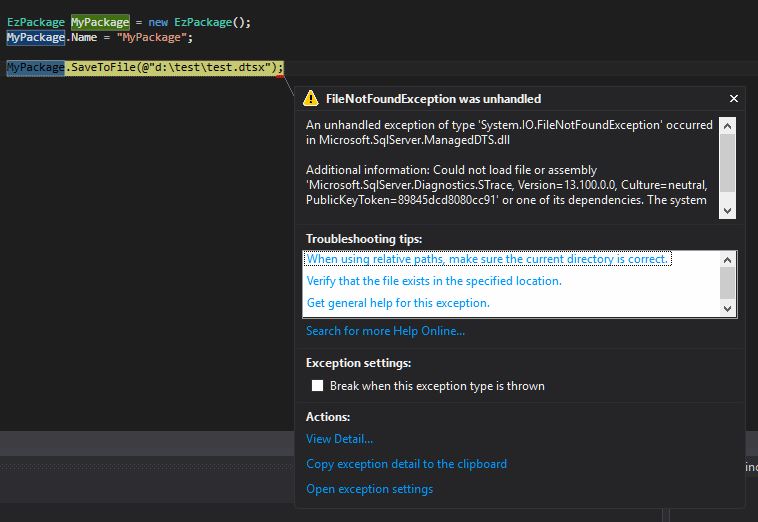
Before I show you the steps of creating a package via EzAPI, you may or may not face this error when you try to save the package:  

An unhandled exception of type 'System.IO.FileNotFoundException' occurred in Microsoft.SqlServer.ManagedDTS.dll

Additional information: Could not load file or assembly 'Microsoft.SqlServer.Diagnostics.STrace, Version=13.100.0.0, Culture=neutral, PublicKeyToken=(your machine based value)' or one of its dependencies. The system cannot find the file specified.


To my understanding it is a reference error, that when the API tries to call its dependency, it cannot find the correct path. To fix the problem, we can manually add the reference. In my case, I move to the system folder "C:\Windows\assembly", search and find correct STrace.dll location (version 13.100.0.0), and then add it into the project reference.


Now if we call the SaveToFile method again, the error has gone.


OK, it is time for the EzAPI. Generally, creating package via EzAPI is much simpler than the pure C# way. Because many SSIS objects have been wrapped and simplified in EzAPI. Below code did the identical thing to my first example: import some records from a flat file into database table, but in a relatively simple way.


        static void Main(string[] args)
        {

            string fltFilePath = @"d:\test\test.txt";
            string pkgPath = @"d:\test\myEzAPIPackage.dtsx";

            EzPackage MyPackage = new EzPackage();
            MyPackage.Name = "myEzAPIPackage";

            //flat file connection manager
            EzFlatFileCM fltFileCM = new EzFlatFileCM(MyPackage);
            fltFileCM.ConnectionString = fltFilePath;
            fltFileCM.ColumnNamesInFirstDataRow = true;

            //similar to the pure C# example
            //we hard code column metadata
            #region columns
            IDTSConnectionManagerFlatFileColumn100 colFirstName = fltFileCM.Columns.Add();
            colFirstName.ColumnType = "Delimited";
            colFirstName.ColumnDelimiter = "|";
            colFirstName.DataType = DataType.DT_STR;
            colFirstName.ColumnWidth = 255;
            ((IDTSName100)colFirstName).Name = "FirstName";


            IDTSConnectionManagerFlatFileColumn100 colLastName = fltFileCM.Columns.Add();
            colLastName.ColumnType = "Delimited";
            colLastName.ColumnDelimiter = "|";
            colLastName.DataType = DataType.DT_STR;
            colLastName.ColumnWidth = 255;
            ((IDTSName100)colLastName).Name = "LastName";

            IDTSConnectionManagerFlatFileColumn100 colSuburb = fltFileCM.Columns.Add();
            colSuburb.ColumnType = "Delimited";
            colSuburb.ColumnDelimiter = "|";
            colSuburb.DataType = DataType.DT_STR;
            colSuburb.ColumnWidth = 100;
            ((IDTSName100)colSuburb).Name = "Suburb";

            IDTSConnectionManagerFlatFileColumn100 colState = fltFileCM.Columns.Add();
            colState.ColumnType = "Delimited";
            colState.ColumnDelimiter = "|";
            colState.DataType = DataType.DT_STR;
            colState.ColumnWidth = 3;
            ((IDTSName100)colState).Name = "State";


            IDTSConnectionManagerFlatFileColumn100 colPostcode = fltFileCM.Columns.Add();
            colPostcode.ColumnType = "Delimited";
            colPostcode.ColumnDelimiter = Environment.NewLine; //this is the last column, so the delimiter needs to be set as new line
            colPostcode.DataType = DataType.DT_STR;
            colPostcode.ColumnWidth = 4;
            ((IDTSName100)colPostcode).Name = "Postcode";

            #endregion

            //ole db connection manager
            EzOleDbConnectionManager oleDBCM = new EzOleDbConnectionManager(MyPackage);
            oleDBCM.ConnectionString = "Data Source = CHI\\SS2016;Provider=SQLNCLI11.1;Initial Catalog = Staging;Integrated Security = SSPI;";
            oleDBCM.Name = "my OLE Connection Manager";

            //data flow task
            EzDataFlow dft = new EzDataFlow(MyPackage);
            dft.Name = "dft EzAPI";

            EzFlatFileSource fltSrc = new EzFlatFileSource(dft);
            fltSrc.Connection = fltFileCM;
            fltSrc.ReinitializeMetaData();

            EzOleDbDestination oleDest = new EzOleDbDestination(dft);
            oleDest.Connection = oleDBCM;
            oleDest.AttachTo(fltSrc);
            oleDest.Table = "Customer";
            

            MyPackage.SaveToFile(pkgPath);

            Console.WriteLine("created successfully");
            Console.ReadLine();

        }


From this code list, we can see EzAPI simplifies the pipeline management, so that we do not need to spend time on adapter coding. However, for the connection managers we still need to define their metadata, and especially when we need to assign flat file source into the data flow task, we need to refresh the metadata by calling ReinitializeMetadata() method.

Now run the program by press F5, the myEzAPIPackage should be generated in your D:\test folder. Open the package in design mode and run it:


So this is the end of this post. In my next post, I will introduce the 3rd way to create the SSIS package dynamically. Before that, enjoy the code. 

2017-03-21

Create SSIS Package in Code Part 1 - Pure C#

A quick question: if you are an ETL specialist, how many times do you need to repeat your SSIS design task? Myself, 80% of my SSIS time is to move a set of data from place A to place B.

So if you haven't known these sort of things, I am going to introduce three ways to build package dynamically:

Today let's focus on pure C# code, it is a bit crazy, so I will never ever suggest anyone to create SSIS packages through this way. But knowing the way how the package is created can give you some understanding when you are looking at EzAPI and BIML. So let's start today's topic.

All I am going to do, is to create a SSIS package in C#, which will load a text file into a table. Below is the T-SQL script to create the dummy table:

use Staging
go

if exists(select 1 from sys.tables where name = 'Customer')
begin
 drop table Customer
end
go

Create table Customer
(
CustomerKey int identity(1,1),
FirstName varchar(255),
LastName varchar(255),
Suburb varchar(100),
State varchar(3),
Postcode varchar(4),
CreatedAt datetime default(getdate())
)
go

insert into Customer (FirstName, LastName, Suburb, State, Postcode)
values
('Chi', 'Qi', 'Richmond', 'VIC', '3121'),
('John', 'Smith', 'Melbourne', 'VIC', '3000')
go

select * from Customer

And the data flow task is as simple as screenshot shows below:


The flat file used in this example is a very simple text file:


To have the package created from C# code directly, I have a C# console project created, then add below references:

Usually you can find these dll files at C:\Program Files (x86)\Microsoft SQL Server\<your SQL Server version>\SDK\Assemblies. Just remember put correct version into the place holder (2016: 130; 2014: 120, 2012: 110, etc.).

Now following the standard way, I add a few using clauses

using Microsoft.SqlServer.Dts.Runtime;
using Microsoft.SqlServer.Dts.Pipeline.Wrapper;
using RunTimeWrapper = Microsoft.SqlServer.Dts.Runtime.Wrapper; 


Now here is a general overview of the steps I am going to do:

  1. create a flat file connection manager for the source; 
  2. create flat file connection in the flat file connection manager;
  3. create column metadata within the flat file connection;
  4. create an OLE DB connection manager for the destination;
  5. create a data flow task in the package;
  6. create the flat file source within the data flow task;
  7. create the OLE DB destination within the data flow task;
  8. create a path between flat file source and OLE DB destination;
  9. map the columns between input and output;
  10. save the package;
  11. execute it!
And after executing the code (package), the staging.dbo.customer table should have dummy customer records from the text file:


I am not going to explain my code line by line - you can find all of them at the end of this post. But there are a few things you might want to know:

  • the connection manager is identified by its name. To have a full list of connection managers, you can all of them at MSDN 
  • the data flow task is identified by its name as well. But when adding them, keep in mind you need to prefix them with "STOCK:". List of the SSIS tasks can be found at here
  • The difficult part is finding correct ComponentClassID for the source and destination. To make it simple, just remember for SSIS 2016 the code is "5", SSIS 2014 the code is "4", SSIS 2012 the code is "3"... 


        static void Main(string[] args)
        {

            Application app = new Application();

            Package pkg = new Package();

            string pkgPath = @"d:\test\myFirstPackage.dtsx";
            string fltFilePath = @"d:\test\text.txt";
                        

            //file connection manager
            ConnectionManager fltFileConMgr = pkg.Connections.Add("FlatFile");
            fltFileConMgr.ConnectionString = @"d:\test\test.txt";
            fltFileConMgr.Name = "my File Connection Manager";

            fltFileConMgr.Properties["Format"].SetValue(fltFileConMgr, "Delimited");
            fltFileConMgr.Properties["ColumnNamesInFirstDataRow"].SetValue(fltFileConMgr, Convert.ToBoolean(true));

            //build the flat file connection in the connection manager
            RunTimeWrapper.IDTSConnectionManagerFlatFile100 fltFileCon = (RunTimeWrapper.IDTSConnectionManagerFlatFile100)fltFileConMgr.InnerObject;
            fltFileCon.CodePage = 1252;

            //for the native flat file connection manager, create import columns
            //in this example, we hard code metadata for all columns
            //FirstName, LastName, Suburb, State, Postcode
            #region columns

            RunTimeWrapper.IDTSConnectionManagerFlatFileColumn100 colFirstName= fltFileCon.Columns.Add();
            colFirstName.ColumnType = "Delimited";
            colFirstName.ColumnDelimiter = "|";
            colFirstName.DataType = RunTimeWrapper.DataType.DT_STR;
            colFirstName.ColumnWidth = 255;
            ((RunTimeWrapper.IDTSName100)colFirstName).Name = "FirstName";

            RunTimeWrapper.IDTSConnectionManagerFlatFileColumn100 colLastName = fltFileCon.Columns.Add();
            colLastName.ColumnType = "Delimited";
            colLastName.ColumnDelimiter = "|";
            colLastName.DataType = RunTimeWrapper.DataType.DT_STR;
            colLastName.ColumnWidth = 255;
            ((RunTimeWrapper.IDTSName100)colLastName).Name = "LastName";

            RunTimeWrapper.IDTSConnectionManagerFlatFileColumn100 colSuburb = fltFileCon.Columns.Add();
            colSuburb.ColumnType = "Delimited";
            colSuburb.ColumnDelimiter = "|";
            colSuburb.DataType = RunTimeWrapper.DataType.DT_STR;
            colSuburb.ColumnWidth = 100;
            ((RunTimeWrapper.IDTSName100)colSuburb).Name = "Suburb";

            RunTimeWrapper.IDTSConnectionManagerFlatFileColumn100 colState = fltFileCon.Columns.Add();
            colState.ColumnType = "Delimited";
            colState.ColumnDelimiter = "|";
            colState.DataType = RunTimeWrapper.DataType.DT_STR;
            colState.ColumnWidth = 3;
            ((RunTimeWrapper.IDTSName100)colState).Name = "State";


            RunTimeWrapper.IDTSConnectionManagerFlatFileColumn100 colPostcode = fltFileCon.Columns.Add();
            colPostcode.ColumnType = "Delimited";
            colPostcode.ColumnDelimiter = Environment.NewLine; //this is the last column, so the delimiter needs to be set as new line
            colPostcode.DataType = RunTimeWrapper.DataType.DT_STR;
            colPostcode.ColumnWidth = 4;
            ((RunTimeWrapper.IDTSName100)colPostcode).Name = "Postcode";

            #endregion


            //ole db connection manager
            ConnectionManager oleConMgr = pkg.Connections.Add("OLEDB");
            oleConMgr.ConnectionString = "Data Source = CHI\\SS2016;Provider=SQLNCLI11.1;Initial Catalog = Staging;Integrated Security = SSPI;";
            oleConMgr.Name = "my OLE Connection Manager";


            //data flow task
            Executable executable = pkg.Executables.Add("STOCK:PipelineTask");
            TaskHost host = (TaskHost)executable;
            host.Name = "DFT my data flow task";

            //now time to add inner object into the DFT
            MainPipe dft = (MainPipe)host.InnerObject;
            

            IDTSComponentMetaData100 src = dft.ComponentMetaDataCollection.New();
            src.Name = "FLT SRC";

            src.ComponentClassID = "DTSAdapter.FlatFileSource.5";
            
            CManagedComponentWrapper instanceSrc = src.Instantiate();
            instanceSrc.ProvideComponentProperties();

            
            if (src.RuntimeConnectionCollection.Count > 0)
            {
                //very important!! get the native object by the conversion
                src.RuntimeConnectionCollection[0].ConnectionManager = DtsConvert.GetExtendedInterface(fltFileConMgr);
                src.RuntimeConnectionCollection[0].ConnectionManagerID = fltFileConMgr.ID;
            }
                                    

            instanceSrc.AcquireConnections(null);
            instanceSrc.ReinitializeMetaData();
            instanceSrc.ReleaseConnections();


            //OLE Destination
            IDTSComponentMetaData100 dest = dft.ComponentMetaDataCollection.New();
            dest.Name = "OLE DEST";
            dest.ComponentClassID = "DTSAdapter.OLEDBDestination.5";

            CManagedComponentWrapper instanceDest = dest.Instantiate();
            instanceDest.ProvideComponentProperties();

            if (dest.RuntimeConnectionCollection.Count > 0)
            {
                dest.RuntimeConnectionCollection[0].ConnectionManager = DtsConvert.GetExtendedInterface(oleConMgr);
                dest.RuntimeConnectionCollection[0].ConnectionManagerID = oleConMgr.ID;
            }

            instanceDest.SetComponentProperty("OpenRowset", "Customer");


            //Path between src and dest
            IDTSPath100 path = dft.PathCollection.New();
            path.AttachPathAndPropagateNotifications(src.OutputCollection[0], dest.InputCollection[0]);

            IDTSInput100 destInput = dest.InputCollection[0];
            IDTSVirtualInput100 destVirtualInput = destInput.GetVirtualInput();
            IDTSVirtualInputColumnCollection100 destVirtualInputColumns = destVirtualInput.VirtualInputColumnCollection;

            instanceDest.AcquireConnections(null);
            instanceDest.ReinitializeMetaData();
            instanceDest.ReleaseConnections();


            //finally, map columns between input and output by name
            foreach (IDTSVirtualInputColumn100 virtualCol in destVirtualInputColumns)
            {
                IDTSInputColumn100 inputCol = instanceDest.SetUsageType(destInput.ID, destVirtualInput, virtualCol.LineageID, DTSUsageType.UT_READONLY);
                IDTSExternalMetadataColumn100 externalColumn = destInput.ExternalMetadataColumnCollection[inputCol.Name];
                instanceDest.MapInputColumn(destInput.ID, inputCol.ID, externalColumn.ID);
            }


            app.SaveToXml(pkgPath, pkg, null);

            pkg.Execute();

            Console.WriteLine("package created");
            Console.ReadLine();
        }

2017-01-26

Sending Email by Gmail Service

In my previous post, we had tried to send email through O365. Today in my first post in 2017, let's try to send an email through gmail service.

Firstly let's look at configuration part. First of the first, we need a google account :p, then we need to turn on the less secure apps setting for the google account. To do that, we can go to the setting page, and then select "turn on".


Pretty much it is the only configuration we need to do at google account level.Very simple, isn't it? Now let's see the coding part. Open a new console program project in Visual Studio, add system.net and system.net.mail into the using section, and then add codes below. Run the program, you should have the email in your mail box.

            //add your email account & password here
            string username = "your account name";
            string password = "your password";

            string emailbody = "some text";

            var client = new SmtpClient("smtp.gmail.com", 587)
            {
                Credentials = new NetworkCredential(username, password),
                EnableSsl = true
            };

            try
            {              
                MailMessage msg = new MailMessage();
                msg.From = new MailAddress(username);

                //add a to recipient here
                msg.To.Add("recipient@emaildomain.com.au");

                msg.Subject = "test html from google account";
                msg.Body = emailbody;
                msg.IsBodyHtml = true;

                Console.WriteLine(DateTime.Now.ToLongTimeString());
                client.Send(msg);
                Console.WriteLine("Sent");
                Console.WriteLine(DateTime.Now.ToLongTimeString());
            }
            catch (Exception ex)
            {
                Console.WriteLine(ex.Message);
            }
            
            Console.ReadLine();


Now, we can make the thing even easier if we want to send emails from SQL Server. What we need to do is just add the gmail into database's mail profile.

Find the Database Mail node in SQL Server Management Studio and select "configure database mail" option


Leave the option to the "Set up Database Mail by performing the following tasks" and press next button


on the next screen, input a profile name, then click add button to add a SMTP account


We need to select an account for the new profile. Since we have not created one for our gmail account, click the "New Account" button


Now we are on the window of "New Database Mail Account", give this account a name by filling in account name. Then add your gmail account information into the fields required, as demonstrated below:


Once all fields are completed, click the OK button will close current account setting window and bring you back to the profile setting window.


The next window will ask you to select a default profile. I don't want any change to the system default profile, so just level it as is and press next button.


Now the next screen asks us to adjust parameters for the profile, leave every to default and press next button


The final screen just shows us a summary of what SQL Server will do for us. Press finish button and SQL Server will set everything up for you.


We can then do a simple test. Right click the Database Mail node and select "Send Test E-mail"


From the dropdown box, select our newly created gmail profile, provide a to recipient, then press "Send Test E-mail".


Now check your mail box, you've got mail :D

2016-06-14

Telstra WiFi API Quick Demonstration

Update on 16/06/2016: VS 2015 project for this post can be accessed on my personal Github repository.


It has been a while since I blogged the SMS API published by Telstra (you can find it here). After that post I spent quite a long time to blog other stuff. Recently I re-visited Telstra's Dev centre and found this interesting WiFi API. So let's try this API today.


Basically the API will accept query parameters of latitude, longitude, and a radius, then it will give us a list of available Telstra WiFi hotspots around the coordination.


The first step to use this API is to get the API key. Similar to the steps I described in my SMS post, it should be quite simple to get a new app created. Just be aware, the product to be ticked is WiFi API, as demonstrated below.


After the registration, expand the app pannel by pressing its name, you should see the consumer key and consumer secret are available now.


Time to look at C# implementation of the API.


Create a Winform project in Visual Studio, and I have a form created: 3 textboxes to accept latitude, longitude, and radius. A calculate button to call the WiFi API, and finally a list box to display all returned WiFi hotspots' addresses (keep in mind that, at this stage the API will return maximum 10 hot spots).


Before starting of the code task, I added two references into my project: one is System.Net.Http, which will be used to issue request and receive response; another one has been heavily used in my previous posts: Newtonsoft.Json. It will help us parse the json string returned from API call.


One thing we can reuse from previous SMS post is the authentication method: pass in consumer key and consumer secret, and then return a token and its expiry seconds:


     private async Task<TelstraToken> GetAccessToken(string consumerkey, string consumersecret)  
     {  
       TelstraToken Token = new TelstraToken();  
       string AccessUrl = @"https://api.telstra.com/v1/oauth/token";  
       HttpClient authClient = new HttpClient();  
       HttpContent httpContent = new FormUrlEncodedContent(new Dictionary<string, string>  
       {  
         {"client_id", consumerkey},  
         {"client_secret", consumersecret},  
         {"grant_type", "client_credentials"},  
         {"scope", "WIFI"}  
       });  
       HttpRequestMessage Request = new HttpRequestMessage()  
       {  
         Method = HttpMethod.Post,  
         RequestUri = new Uri(AccessUrl),  
         Content = httpContent  
       };  
       try  
       {  
         var ResponseMessage = await authClient.SendAsync(Request);  
         var Response = await ResponseMessage.Content.ReadAsStringAsync();  
         if (ResponseMessage.IsSuccessStatusCode)  
         {  
           var AuthToken = JsonConvert.DeserializeObject<object>(Response);  
           JObject jObj = JObject.Parse(AuthToken.ToString());  
           Token.AccessToken = jObj["access_token"].ToString();  
           Token.ExpiredDt = DateTime.Now.AddSeconds(double.Parse(jObj["expires_in"].ToString()));  
         }  
       }  
       catch (Exception ex)  
       {  
         MessageBox.Show(ex.Message);  
       }  
       return Token;  
     }  


You may question the TelstraToken object from the method above: It is just a simple object to host token value/expiry date time. Beside this simple object, I also created another helper class for Hotspot returned from API. Below are the definitions for these two classes:

     internal class TelstraToken  
     {  
       internal string AccessToken;  
       internal DateTime ExpiredDt;  
       internal TelstraToken() { }  
       internal TelstraToken(string _accessToken, DateTime _expiredDt)  
       {  
         this.AccessToken = _accessToken;  
         this.ExpiredDt = _expiredDt;  
       }        
     }  
     internal class TelstraWifiHotSpot  
     {  
       internal string latitude;  
       internal string longitude;  
       internal string address;  
       internal string city;  
       internal string state;  
       internal TelstraWifiHotSpot(string _latitude, string _longitude, string _address, string _city, string _state)  
       {  
         this.latitude = _latitude;  
         this.longitude = _longitude;  
         this.address = _address;  
         this.city = _city;  
         this.state = _state;  
       }  
       public override string ToString()  
       {  
         string fullAddress = string.IsNullOrWhiteSpace(address) ? string.Empty : address;  
         fullAddress += ", ";  
         fullAddress += string.IsNullOrWhiteSpace(city) ? string.Empty : city;  
         fullAddress += " ";  
         fullAddress += string.IsNullOrWhiteSpace(state) ? string.Empty : state;  
         return fullAddress;  
       }  
     }  


Now all preparations are done. The only missing part is the button click event:


     private async void btnCalculate_Click(object sender, EventArgs e)  
     {  
       List<TelstraWifiHotSpot> lst = new List<TelstraWifiHotSpot>();  
       if (_token == null || _token.ExpiredDt < DateTime.Now)  
       {  
         _token = await GetAccessToken("your consumer key", "your consumer secret");  
       }  
       string latitude = txtLatitude.Text;  
       string longitude = txtLongitude.Text;  
       string radius = txtRadius.Text;  
       string url = string.Format("https://api.telstra.com/v1/wifi/hotspots?lat={0}&long={1}&radius={2}", latitude, longitude, radius);  
       HttpClient client = new HttpClient();  
       client.DefaultRequestHeaders.Authorization = new System.Net.Http.Headers.AuthenticationHeaderValue("Bearer", _token.AccessToken);  
       HttpRequestMessage request = new HttpRequestMessage()  
       {  
         Method = HttpMethod.Get,  
         RequestUri = new Uri(url)  
       };  
       HttpResponseMessage responseMessage = await client.SendAsync(request);  
       var message = await responseMessage.Content.ReadAsStringAsync();  
       var jMsg = JsonConvert.DeserializeObject<object>(message);  
       foreach (var j in (JArray)jMsg)  
       {  
         string wifiLatitude = ((JObject)j)["lat"].ToString();  
         string wifiLongitude = ((JObject)j)["long"].ToString();  
         string wifiAddress = ((JObject)j)["address"].ToString();  
         string wifiCity = ((JObject)j)["city"].ToString();  
         string wifiState = ((JObject)j)["state"].ToString();  
         TelstraWifiHotSpot hotspot = new TelstraWifiHotSpot(wifiLatitude, wifiLongitude, wifiAddress, wifiCity, wifiState);  
         lst.Add(hotspot);  
       }  
       if (lst.Count > 0)  
       {  
         lstHotspots.DataSource = lst;  
         lstHotspots.DisplayMember = lst.ToString();  
       }  
     }  


After we put everything together and run the project, you should be able to find the hotspots Telstra provided:


2016-05-16

SSIS Custom Control Flow Task - RS Execution Task

Long time ago I blogged the topic of how to create custom control flow component in SSIS.  In those posts I demonstrated how to build the control flow task by a very simple component but without any execution logic.


Recently I started to upgrade my old jobs from 2012 to 2014 version. So to demonstrate how to design the execution logic, I uploaded the source code of my report execution task onto the Github. You can access the C# project here.


The whole project was created by following the same routine I posted at part1, part2, part3, and part4. So hopefully it can give you some general ideas when you want to create your own control flow task. You do not need to follow steps listed in my posts: in a real world scenario, you can create the task by using just one class library project, simply add Winform into the project.


Feel free to modify the source code of the project if you want to adopt it in your own scenario: just follow the instruction in the readme and build the project into your SSIS task folder:


If you are using other version of SQL Server, e.g. 2008R2 or 2012, you can still use it. Because the task is built on top of ReportService2010 and ReportExecution2005 web services, you can build you own version by referencing correct Microsof.SqlServer.ManagedDTS and Microsoft.SqlServer.Dts.Design. By default installation, you should find them at the SDK folder: ...\Microsoft SQL Server\<SQL version>\SDK\Assemblies\.


Unfortunately there is no simple solution to convert the task to support SSRS2005 or SSRS2008, because they are built based on ReportingService2005/2006 web services. So to get the task fully support these two versions, you have to rebuild the web service reference and fix the conflict in the project.


One last word is, please always do the test before deploy it into your production, it is at your own risk if you decide to use it in your production environment.


2016-03-21

Process HTML table by HTMLAgility Pack

Ocassionaly I need to deal with data inside a html table. For example, a report generated from Salesforce: though it is in ".xls" format, it is actually a html file. From what I tried, HTMLAgility pack can do quite a lot jobs for you, as demonstrated below.

Firstly I need a report from Salesforce. To do so, I log into my developer account, and navigate to Reports -> Account and Contact Report. From here I select New Accounts report, and press Export Details button to save the report into my local drive.


After save the report, when we open the report, an error message pops up and tells us the file doesn't look like an Excel file.


Ignore the error by pressing Yes button, the file is opened, and everything seems to be fine.


Now close the file and open it by your favorate text editor. Now you see it is actually a html file.


To import such a file by SSIS is not a simple task, as the file cannot be used as an Excel Data Source. What I usually did, is using HTMLAgility  pack in C# to generate the data source.


As usual, the coding task itself is simple, understanding how the HTMLAgility pack deals with the document object is important. Basically it will treat every html tag as a node, then drill down to the lowest child node. After understand this point, it is just a matter of dealing exceptions, for instance, we do not want to process a report with column header only.  Here is the example of using HTMLAgility pack when I need to import Salesforce report

       string filepath = @"D:\sforcerpt\report1458540550328.xls";  
       if (File.Exists(filepath))  
       {  
         HtmlDocument doc = new HtmlDocument();  
         doc.Load(filepath);  
         DataTable dt = new DataTable();  
         foreach (HtmlNode n in doc.DocumentNode.ChildNodes)  
         {  
           if (n.Name == "table" && n.HasChildNodes && n.ChildNodes.Where(x => x.Name == "tr").Count() >= 2)  
           {  
             int NbrOfRows = n.ChildNodes.Where(x => x.Name == "tr").Count();  
             //column headers  
             HtmlNode headerRow = n.SelectSingleNode("/table[1]/tr[1]");  
             foreach (HtmlNode header in headerRow.ChildNodes)  
             {  
               dt.Columns.Add(header.InnerText);  
             }  
             //content rows  
             for (int i = 2; i <= NbrOfRows; i++)  
             {  
               string path = "/table[1]/tr[" + i.ToString() + "]";  
               HtmlNode contentRow = n.SelectSingleNode(path);  
               DataRow dr = dt.NewRow();  
               for (int j = 1; j <= contentRow.ChildNodes.Count; j++)  
               {  
                 dr[j - 1] = contentRow.ChildNodes[j - 1].InnerText;  
               }  
               dt.Rows.Add(dr);  
             }  
           }  
         }  
         foreach (DataRow r in dt.Rows)  
         {  
           Console.WriteLine("Account ID: {0}; Account Name: {1}", r["Account ID"].ToString(), r["Account Name"].ToString());  
         }  
         Console.ReadLine();  
       }  


2016-01-11

Access Office 365 Mail Box by Exchange Service Managed API


So here is the requirement from clinet: We are required to monitor several Office 365 mail boxes, and if the specific email is found, we need to do some follow up activities, e.g. re-distribute the email to a nominated user.
To access the Office 365 mail box, we can use Exchange Service Managed API. In the old way we can use method listed at here. However now we can use a much easier way to handle the request, as now Office 365 provides a direct endpoint for EWS Managed API. Below is a quick demonstration of how to access Office 365 mail box.

The first step, and the only step to prepare the project, is to reference the EWS API in your project. The API can be referenced into your project from nuget directly. Or alternatively you can obtain it from Microsoft download centre. If you download the API from Microsoft download centre, you need to manually reference the API in your project. The dll can be found at “C:\Program Files (x86)\Microsoft\Exchange\Web Services\{version no.}\Microsoft.Exchange.WebServices.dll”.


Now time to start coding. Firstly we need to declare the endpoint for the EWS API.

       string emailaddr = "{o365 account}";  
       string password = "{o365 password}";  
       ExchangeService service = new ExchangeService(ExchangeVersion.Exchange2013_SP1);  
       service.Credentials = new WebCredentials(emailaddr, password);  
       Uri u = new Uri(@"https://outlook.office365.com/EWS/Exchange.asmx");  
       service.Url = u;        


To make things simple, assume we are going to search unread emails in the inbox folder. So we create a search view for the folder

       Folder inbox = Folder.Bind(service, WellKnownFolderName.Inbox);  
       SearchFilter filter = new SearchFilter.SearchFilterCollection(LogicalOperator.And, new SearchFilter.IsEqualTo(EmailMessageSchema.IsRead, false));  
       ItemView view = new ItemView(10);  


Now there is a small trouble: we need to find the item ID from FindItems call, then we use GetItem call to get item contents.

       FindItemsResults<Item> results = service.FindItems(WellKnownFolderName.Inbox, filter, view);  
       ServiceResponseCollection<GetItemResponse> responses = service.BindToItems(results.Select(i => i.Id)  
         , new PropertySet(BasePropertySet.FirstClassProperties, EmailMessageSchema.From, EmailMessageSchema.ToRecipients));  
       foreach (var item in responses)  
       {  
         EmailAddress fromaddress = (EmailAddress)item.Item[EmailMessageSchema.From];  
         EmailAddressCollection to = (EmailAddressCollection)item.Item[EmailMessageSchema.ToRecipients];  
         string toaddress = string.Empty;  
         foreach (EmailAddress a in to)  
         {  
           toaddress += a.Address + "; ";  
         }  
         Console.WriteLine("From: {0}", fromaddress.Address);  
         Console.WriteLine("To: {0}", toaddress);  
         Console.WriteLine("Subject: {0}", item.Item.Subject);  
         Console.WriteLine("Body:{0}", item.Item.Body == null ? string.Empty : item.Item.Body.Text);  
         Console.WriteLine();  
       }  
       Console.ReadLine();  

So that is all, quick and simple. Below is the result from above code