Well, not sure about your opinion, but I think map visual in Power BI is not that...good. One alternative way is to use SVGs but it is hard to find state/country SVG materials for AU, so I just spent some time to convert states and country map to SVGs: LINK
Showing posts with label Power BI. Show all posts
Showing posts with label Power BI. Show all posts
2024-04-26
SVG for AU

2019-01-22
SSAS Tabular Case Study: Change Cases of Member
Happy New Year, and I hope everyone all the best to 2019.
To begin with 2019, I just want to keep it simple. Let's see a small problem I found in SSAS tabular model recently: It could be very confusing when we need to change the case of a dimension member. To demonstrate this problem, I created a very simple table:
As you can see it is a very simple table

And then I just created a tabular model based on this simple table.

Now I bring in the Power BI to visualise the product name by country

So far everything is good. But assume CN's manager wants to make some formatting changes: I want to see the product name in proper case, "Bike". Looks very simple, doesn't it? So we go to the database, update product name to proper case, re-process the model.

Now refresh the report, nothing happens!

What happened? You can find the reason here. In short, it is because tabular model uses columnar storage mode, so for the same string value, it will only save the first instance regardless of its form. So in tabular model, "BIKE", "bike", "Bike", and "biKE" are all saved as one entry "BIKE". So now doesn't mater how many times you update your data, or re-process your tabular model, the report will always show "BIKE" as the product name.
To approve this, let's update all "BIKE" to "Bike" now, then re-process the model.

Now we go back to the PBI report and refresh it.

So here is the conclusion. When we design the data model, usually we will denormalise the data to build the dimension, which obviously, will generate lots of duplicated entries. When there is a requirement to show members in different forms, we need to be very careful due to the storage mode. In my practice, I would suggest to have a format string field build into the model.
To begin with 2019, I just want to keep it simple. Let's see a small problem I found in SSAS tabular model recently: It could be very confusing when we need to change the case of a dimension member. To demonstrate this problem, I created a very simple table:
use master
go

create database demo
go

use demo
go

if exists (select 1 from sys.tables where name = 'product')
drop table product
go

create table PRODUCT
(
ProductKey int identity(1,1),
ProductName varchar(100),
Country varchar(100),
Constraint PK_Product Primary Key (ProductKey)
)
go

Insert into Product(ProductName, Country)
values
('BIKE', 'AU'),
('BIKE', 'UK'),
('BIKE', 'US'),
('BIKE', 'CN'),
('BIKE', 'NZ')
go

Select * from PRODUCT
As you can see it is a very simple table

And then I just created a tabular model based on this simple table.
Now I bring in the Power BI to visualise the product name by country

So far everything is good. But assume CN's manager wants to make some formatting changes: I want to see the product name in proper case, "Bike". Looks very simple, doesn't it? So we go to the database, update product name to proper case, re-process the model.
Update PRODUCT set ProductName = 'Bike' where Country = 'CN'

Now refresh the report, nothing happens!

What happened? You can find the reason here. In short, it is because tabular model uses columnar storage mode, so for the same string value, it will only save the first instance regardless of its form. So in tabular model, "BIKE", "bike", "Bike", and "biKE" are all saved as one entry "BIKE". So now doesn't mater how many times you update your data, or re-process your tabular model, the report will always show "BIKE" as the product name.
To approve this, let's update all "BIKE" to "Bike" now, then re-process the model.

Now we go back to the PBI report and refresh it.

So here is the conclusion. When we design the data model, usually we will denormalise the data to build the dimension, which obviously, will generate lots of duplicated entries. When there is a requirement to show members in different forms, we need to be very careful due to the storage mode. In my practice, I would suggest to have a format string field build into the model.
2018-11-29
Power BI: Parameter Table and Dynamic Date Range
As we know Power BI is all about filter context, which brings us quite a lot convenience. But for some cases, it might not be what we want. For instance, what if I want to show amount of sales for last N months by a calendar month slicer? Because the slicer puts a constraint on the calendar month, you won't be able to show sales amount month by month. As illustrated below, how can we see total sales for 2012-12, 2012-11, etc.?

Normally what we can do is creating a disconnected date dimension, and using this disconnected date dimension for the slicer. But sometimes it could be very confusing to end users. So instead of creating a second date dimension, we can try to use date member from the fact table directly. So let's start today's topic:
Firstly the demonstration I built is from AdventureWorksDW2014.
To make it simple, I only loaded DimDate and FactInternetSales tables. Then, I removed default relationships and create the date relationship between FullDateAlternateKey and OrderDate columns directly.

Finally I created a custom column in the DimDate table for calendar month:
Calendar Month = FORMAT(DimDate[FullDateAlternateKey], "yyyy-MM")
Then we need a parameter table, which gives us control of how many months of sales user wants to see. In the real world scenario, we may need to create a junk dimension to hold these values. But in this demonstration, I just manually input the data.

Now let's create two simple measures:
Total Sales = SUM(FactInternetSales[SalesAmount])
Selected Period = IF(HASONEVALUE('Parameter Table'[Parameter Value]), VALUES('Parameter Table'[Parameter Value]))
If we follow normal steps to create visuals (create a slicer from 'DimDate'[Calendar Month], create a slicer from 'Parameter Table'[Parameter Name], then drop the table visual for calendar month and total sales), you will find the table visual won't show last N months sales, because the calendar month slicer puts a filter context to the fact table.
So let's make three changes to make it work:
1. add a calculate order month column into the fact table
Order Month = FORMAT(FactInternetSales[OrderDate], "yyyy-MM" )
2. add a measure for total sales of last N months. (note: Max function gives us the last date within the current filter context - the calendar month slicer value in this case)
Sales (in period) = CALCULATE([Total Sales], DATESINPERIOD(DimDate[FullDateAlternateKey], MAX(DimDate[FullDateAlternateKey]), -[Selected Period], MONTH))
3. now instead of using 'DimDate'[Calendar Month] and [Total Sales] for the table, we drag and drop 'FactInternetSales'[Order Month] and [Sales (in period)] into the table visual.

Easy job, isn't it? :D

Normally what we can do is creating a disconnected date dimension, and using this disconnected date dimension for the slicer. But sometimes it could be very confusing to end users. So instead of creating a second date dimension, we can try to use date member from the fact table directly. So let's start today's topic:
Firstly the demonstration I built is from AdventureWorksDW2014.
To make it simple, I only loaded DimDate and FactInternetSales tables. Then, I removed default relationships and create the date relationship between FullDateAlternateKey and OrderDate columns directly.

Finally I created a custom column in the DimDate table for calendar month:
Calendar Month = FORMAT(DimDate[FullDateAlternateKey], "yyyy-MM")
Then we need a parameter table, which gives us control of how many months of sales user wants to see. In the real world scenario, we may need to create a junk dimension to hold these values. But in this demonstration, I just manually input the data.
Now let's create two simple measures:
Total Sales = SUM(FactInternetSales[SalesAmount])
Selected Period = IF(HASONEVALUE('Parameter Table'[Parameter Value]), VALUES('Parameter Table'[Parameter Value]))
If we follow normal steps to create visuals (create a slicer from 'DimDate'[Calendar Month], create a slicer from 'Parameter Table'[Parameter Name], then drop the table visual for calendar month and total sales), you will find the table visual won't show last N months sales, because the calendar month slicer puts a filter context to the fact table.
So let's make three changes to make it work:
1. add a calculate order month column into the fact table
Order Month = FORMAT(FactInternetSales[OrderDate], "yyyy-MM" )
2. add a measure for total sales of last N months. (note: Max function gives us the last date within the current filter context - the calendar month slicer value in this case)
Sales (in period) = CALCULATE([Total Sales], DATESINPERIOD(DimDate[FullDateAlternateKey], MAX(DimDate[FullDateAlternateKey]), -[Selected Period], MONTH))
3. now instead of using 'DimDate'[Calendar Month] and [Total Sales] for the table, we drag and drop 'FactInternetSales'[Order Month] and [Sales (in period)] into the table visual.

Easy job, isn't it? :D
2018-09-25
Power BI/Power Query: Load JIRA Issues in Parallel
For nearly a year I haven't done any posting, as I was doing some works not relevant to SQL things, AR/MR with Unity, Machine Learning/Deep Learning, and Flask development. Now I am back to data related works so hopefully I will restart blogging my data experience. Let's see what we can do today.

Then based on this ufnGetJson function, we can get total amount of issues and split the stream to multiple batches (5 batches in below example)
Code listed above provides us with a boundary of the issue numbers we need to call. Now we just need to create 5 datasets and call the function separately, but keep in mind, we need to provide different n value. e.g. to get the first batch we can have the query like below
The last step is simply creating a new dataset by combining all 5 datasets into one.

At my end this approach improves loading speed a lot, but obviously it depends on connection capacity. Let me know if there is any problem :)
Due to performance issue, JIRA made the decision to limit amount of records returned from its Rest API to 100 (here). But what if we are working on a large number of issues? like this
So we need to make the API call for more than 200 times. So depends on business requirement, the Power BI report could be just too long to refresh.
An alternative way to handle large amount of issues is we call the API in parallel. To do that, firstly let's create a basic function ufnGetJson to call the API (replace the Organization place holder with correct value):
 (nStartAt) =>
     let
       query = Json.Document(Web.Contents("https://{organization}.atlassian.net/rest/api/2/search?maxResults=100&startAt=" & Number.ToText(nStartAt)))
     in
       query
Then based on this ufnGetJson function, we can get total amount of issues and split the stream to multiple batches (5 batches in below example)
 ufnGetRange
 (n) =>
     let
       tmpResult = ufnGetJson(0),
       totalItem = tmpResult[total],
       cnt = totalItem / 5,
       returnRange = {(n-1) * Number.RoundDown(cnt)..n * Number.RoundUp(cnt)}
     in
       returnRange
Code listed above provides us with a boundary of the issue numbers we need to call. Now we just need to create 5 datasets and call the function separately, but keep in mind, we need to provide different n value. e.g. to get the first batch we can have the query like below
 let
   rng = ufnGetRange(1),
   startAt = List.Min(rng),
   boundary = List.Max(rng),
   pages = {Number.RoundDown(startAt/100)..Number.RoundDown(boundary/100)},
   pageRange = List.Transform(pages, each _ * 100),
   paginated = List.Transform(pageRange, each ufnGetJson(_)),
   #"Converted to Table" = Table.FromList(paginated, Splitter.SplitByNothing(), null, null, ExtraValues.Error)
 in
   #"Converted to Table"
The last step is simply creating a new dataset by combining all 5 datasets into one.
 let
   combined = Table.Combine({#"Issue Batch 1", #"Issue Batch 2", #"Issue Batch 3", #"Issue Batch 4", #"Issue Batch 5"}),
      ....
      ....
      ....
At my end this approach improves loading speed a lot, but obviously it depends on connection capacity. Let me know if there is any problem :)
2017-10-01
Power BI/Power Query: API Response Pagination Part 3 - Missing Indicator
This is the 3rd post about pagination in Power BI/Power Query.
In part 1 and part 2 we have discussed how to paginate Restful response if the response contains a total item Count or a next page Token. So what if the response only returns us records, without any indicator about the next page?
Let's take a look on Basecamp todo API. If we call the API at the end point /api/v1/projects/{project id}/todos.json?page=1, the begin of the response and the end of the response look like below screenshots:
Sorry for the messy screenshots, but the point is, this API doesn't give us a token for next page. We have to query the next page to ensure our API call pulls all records we need. You might have hundreds of ways to do the job, but my first impression is let's create a recursive function. Let's think about the problem:
1. We receive the first page from the response and merge the records into a table "T";
2. Then we move on to the next page
2.1 If the next page contains records then we repeat step 1 (merge records into "T") and step 2
2.2 If there is no records in the next page, then we stop and return the table "T"
It is simply a classic recursive scenario. In Power Query, the recursive function is all about the "@". Let's look at the codes
As you can see, the key function in codes above is the 2nd function, in the function body, we check amount of records returned from the call, and if the amount is greater than 0, we recursively (@) call the function by passing the merged table and next page number. Simple enough, right?

In part 1 and part 2 we have discussed how to paginate Restful response if the response contains a total item Count or a next page Token. So what if the response only returns us records, without any indicator about the next page?
Let's take a look on Basecamp todo API. If we call the API at the end point /api/v1/projects/{project id}/todos.json?page=1, the begin of the response and the end of the response look like below screenshots:
 | |
| begin of the response |
 |
| end of the response |
Sorry for the messy screenshots, but the point is, this API doesn't give us a token for next page. We have to query the next page to ensure our API call pulls all records we need. You might have hundreds of ways to do the job, but my first impression is let's create a recursive function. Let's think about the problem:
1. We receive the first page from the response and merge the records into a table "T";
2. Then we move on to the next page
2.1 If the next page contains records then we repeat step 1 (merge records into "T") and step 2
2.2 If there is no records in the next page, then we stop and return the table "T"
It is simply a classic recursive scenario. In Power Query, the recursive function is all about the "@". Let's look at the codes
let
    ufnQuery = (n) =>
        let
            jsonDoc= Json.Document(
                        Web.Contents(
                            "https://basecamp.com/{domain}/api/v1/projects/{project id}/todos.json?page=" & Number.ToText(n),
                            [Headers=[Authorization="Basic {the key}"]]
                        )
        ),
        tmpTbl = Table.FromList(jsonDoc, Splitter.SplitByNothing(), null, null, ExtraValues.Error)
    in
        tmpTbl,

    fnRecursive = (tbl, n) =>
        if Table.RowCount(ufnQuery(n)) > 0 then @fnRecursive(Table.Combine({tbl, ufnQuery(n)}), n+1) else tbl,

    tbl = ufnQuery(1),
    result = fnRecursive(tbl, 2)
in
   result
As you can see, the key function in codes above is the 2nd function, in the function body, we check amount of records returned from the call, and if the amount is greater than 0, we recursively (@) call the function by passing the merged table and next page number. Simple enough, right?

2017-09-17
Power BI/Power Query: API Response Pagination Part 2 - Paginate by Page Cursor
This is the 2nd post of the topic API Response Pagination in Power BI/Power Query. You can find the first post here.
In the first post we have seen an API pagination example in Power Query, in which the API response provides us with the total record count, then we can calculate amount of pages we need to query. So today let's see another typical scenario in API response: the response contains an cursor pointing to the next page. (Here the cursor could be a direct link brings you to the next page, or it could be a page token you need to apply to your next API call).
The example I demonstrated today is Youtube Search API, and the channel I am going to search is VicRoad (as this post is focusing on result pagination, I am not going to explain how to prepare the API call :P). Below is a well-formatted Json response returned from the call. As you can see, the key field (the cursor) we are going to use is "nextPageToken".

Similar to the last post, the first step is preparing a base call function, as shown below. However, this time we return a list, which contains the result set of the current call, as well as the nextPageToken field we can use for drilling calls.

Now here is the core function of today's topic: List.Generate(). Basically you can treat this function as the FOR loop: we initialize a variable, give it a stop condition, specify the incremental action to the variable, and finally populate the return list result. Below is what I wrote:
 So what we did is quite clear now: we create a helper function to call the API; Inside the List.Generate() function, we call the function to repeatedly populate records on different pages by using nextPageToken value. So what we need to do is just turning the result to table? Hold on for one second!
Let's review this piece of codes. So initially we call the API without page token, and the return result set contains records from page 1 and token for page 2, hence the second call gives us records from page 2 and token for page 3...
Now you see the problem: our condition for generating the list is "for each NOT NULL nextPageToken". We haven't gone through the last page!
Fixing the problem is quite simple, we can just manually query the last page, and then combine the result sets:
 Put all together:
Now Run the query we should have all the records we need.

In the first post we have seen an API pagination example in Power Query, in which the API response provides us with the total record count, then we can calculate amount of pages we need to query. So today let's see another typical scenario in API response: the response contains an cursor pointing to the next page. (Here the cursor could be a direct link brings you to the next page, or it could be a page token you need to apply to your next API call).
The example I demonstrated today is Youtube Search API, and the channel I am going to search is VicRoad (as this post is focusing on result pagination, I am not going to explain how to prepare the API call :P). Below is a well-formatted Json response returned from the call. As you can see, the key field (the cursor) we are going to use is "nextPageToken".

Similar to the last post, the first step is preparing a base call function, as shown below. However, this time we return a list, which contains the result set of the current call, as well as the nextPageToken field we can use for drilling calls.

Now here is the core function of today's topic: List.Generate(). Basically you can treat this function as the FOR loop: we initialize a variable, give it a stop condition, specify the incremental action to the variable, and finally populate the return list result. Below is what I wrote:

Let's review this piece of codes. So initially we call the API without page token, and the return result set contains records from page 1 and token for page 2, hence the second call gives us records from page 2 and token for page 3...
Now you see the problem: our condition for generating the list is "for each NOT NULL nextPageToken". We haven't gone through the last page!
Fixing the problem is quite simple, we can just manually query the last page, and then combine the result sets:

let
    ufnGetList = (pgToken) =>
        let
            result = Json.Document(
                        Web.Contents("https://www.googleapis.com/youtube/v3/search?part=snippet&channelId=UCkT7-rjW_Foojt0ZRtbXMdA&maxResults=50&type=video&key=[put your api key here]&pageToken=" & pgToken)
                        ),
            nextPageToken = try result[nextPageToken] otherwise null,
            items = result[items],
            record = [items = items, nextPageToken = nextPageToken]
        in
            record,

    resultSet = List.Generate(
                    () => ufnGetList(""),
                    each _[nextPageToken] <> null,
                    each ufnGetList(_[nextPageToken]),
                    each [nextPageToken = _[nextPageToken], items = _[items]]
                    ),

    lastPageToken = List.Last(Table.FromRecords(resultSet)[nextPageToken]),
    lastResultSet = ufnGetList(lastPageToken)[items],

    fullResultSet = Table.Combine({Table.FromRecords(List.Combine(Table.FromRecords(resultSet)[items])), Table.FromRecords(lastResultSet)})


in
    fullResultSet
Now Run the query we should have all the records we need.

2017-09-03
Power BI/Power Query: API Response Pagination Part 1 - Paginate by Item Count
It has been a while since my last post, lots of things happened in these few month, changed my career path, obtained my certification... Finally I got a chance to sit down and restart the blog. So today's topic is pagination in REST API response.
As you can see in the past I had done a few posts of how to consume API results in SSIS via script components, such as this post. But in Power BI, it might not be as easy as what we did in the script component, because there is no direct way to do a loop when reading paginated response.
Generally there are two types of paginated result set:
-- Good: A Json response contains an indicator to provide you with the information of the next page, it could be a link for the next page, or it could be a token for you to issue the next call, or it could be a total item count so you need to do a calculation of how many pages you need to go through. This is today's topic.
-- Cursed: A Json result set does not have pagination information, so you need to query next page every time until the the response gives us nothing.
So, let's prepare today's post here. To demonstrate the logic, I am using the v3 SET (/api/v3/lego/sets) API from rebrickable. The API itself is quite simple, but you need to create an account, then generate a API key from your account profile to call the API. It is a simple process so I won't cover it here.
After we obtain the API key, it is time to open the Power Query window in Power BI

From opened query window, select Web as the data source

In the pop up window, select Advanced option, and then input API endpoint and key value, as you can see below, I set page size to 100, and the initial page is 1.

Click the OK button and the query should run automatically and give you the result. As you can see the response is quite clear: it provides you total items in the result set, as well as the link you should use to visit the next page. In this example, I am going to use the "count" indicator to do the loop.

Now Power Query has built the basic routine for us. We need to manually modify the query
to return the result page by page. So firstly we open the query edit window by click Advanced Editor

Our query looks like screenshot captured below

In the query editor window, I transform the query into a function, nothing special, it simply accepts a page number and then return the Json response.

Here is the key part:

And the result returned from the query:
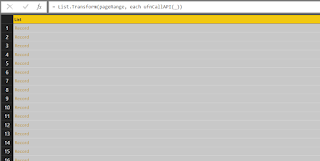 (note: 100/page might be too small to issue the call, if it is too slow, you can try to change the page_size parameter to 1000 in the function definition, as well as the pageRange list boundary to {1..Number.RoundUp(totalItems/1000)} )
As you can see, though there is no loop function available in Power Query (at this stage), we can still retrieve paginated API responses by using provided paging indicator. In my next post, I will cover the topic of how to handle no indicator response in Power Query. Enjoy.
As you can see in the past I had done a few posts of how to consume API results in SSIS via script components, such as this post. But in Power BI, it might not be as easy as what we did in the script component, because there is no direct way to do a loop when reading paginated response.
Generally there are two types of paginated result set:
-- Good: A Json response contains an indicator to provide you with the information of the next page, it could be a link for the next page, or it could be a token for you to issue the next call, or it could be a total item count so you need to do a calculation of how many pages you need to go through. This is today's topic.
-- Cursed: A Json result set does not have pagination information, so you need to query next page every time until the the response gives us nothing.
So, let's prepare today's post here. To demonstrate the logic, I am using the v3 SET (/api/v3/lego/sets) API from rebrickable. The API itself is quite simple, but you need to create an account, then generate a API key from your account profile to call the API. It is a simple process so I won't cover it here.
After we obtain the API key, it is time to open the Power Query window in Power BI

From opened query window, select Web as the data source

In the pop up window, select Advanced option, and then input API endpoint and key value, as you can see below, I set page size to 100, and the initial page is 1.

Click the OK button and the query should run automatically and give you the result. As you can see the response is quite clear: it provides you total items in the result set, as well as the link you should use to visit the next page. In this example, I am going to use the "count" indicator to do the loop.

to return the result page by page. So firstly we open the query edit window by click Advanced Editor

Our query looks like screenshot captured below

In the query editor window, I transform the query into a function, nothing special, it simply accepts a page number and then return the Json response.

Here is the key part:
- We pull the total item count from the initial call
- Then we generate a list for page numbers
- For each list item, we call the ufnCallAPI function

And the result returned from the query:

As you can see, though there is no loop function available in Power Query (at this stage), we can still retrieve paginated API responses by using provided paging indicator. In my next post, I will cover the topic of how to handle no indicator response in Power Query. Enjoy.
2016-07-05
Power BI & Telstra Wifi Hotspot API
A while ago I wrote the post to show how to call Telstra Wi-Fi Hotspot API through C#. Today let’s see how easy we can achieve the same result (even better) by using Microsoft Power BI.
Power BI, in short, is an powerful BI tool for data extraction, transformation, and visualisation. I would highly recommend it if you haven’t tried it yet. At this stage you can sign it up for free, by applying a trial office 365 license.
Now back to the topic, today my plan is to call the API by using Power Query embedded in Power BI, and then display the result on the workspace. To do so let’s open Power BI Desktop, and press Edit Queries button on the ribbon.

On the Query Editor window (Power Query), open dropdown menu by press New Source button, then select Blank Query option.

Now click Advanced Editor button on the ribbon to open the editor window

Now Advanced Editor window pops up, and we can start to type in Power Query statements. To demonstrate how powerful the power query is, I decided to split the procedure into two: create a function to get oAuth token, and then call the Wi-Fi Hotspot API.
To create the function in Power Query, firstly let’s write below query (replace consumer key and consumer secret)

Click Done button and the oAuth result should be shown on Power Query window directly, as shown below

So far everything is good. What we need to do now is to introduce parameters into the query, and then parameterise the query. To do so firstly create new parameters

For demonstration purpose, I treat consumer key and consumer secret as parameters, as shown below


Now change our query a bit, I have highlighted changes in the screenshot attached below

Once you done everything and click Done button, the function window appears

Now you can test the function by entering consumer key and consumer secret then pressing the Invoke button.

The function should work as expected. Time to write the 2nd script. Following the same step to open a blank query window and input statements like below.

Now things could be a little bit tricky. Depends on your Power BI desktop setting, you might get the result without any issue. But in most cases, you could see two different types of warnings: connection warning and privacy warning. In short it is because we are passing oAuth token from a different Url (https://api.telstra.com/v1/oauth/token vs https://api.telstra.com/v1/wifi/hotspots). Let's see how we can resolve these conflicts:
The first warning you might see is the connection warning.

Click the button “Edit Credential” will lead us to a popup window. Because we retrieve our token by passing consumer key and consumer secret into the function, we can simply select Anonymous method and then select the Url https://api.telstra.com/v1/oauth/token as the target.

The next window is about data privacy.

On the Privacy Level screen, select the Url https://api.telstra.com/v1/oauth/token, and then select “Public” as the scope.

After all these steps, the data table should be generated automatically

Now we can go back to the Power BI by clicking the button “Close & Apply” at the top left corner. Drag a map visual onto the workspace, drop Lat and Long columns onto the corresponding map fields, and that is it

Power BI, in short, is an powerful BI tool for data extraction, transformation, and visualisation. I would highly recommend it if you haven’t tried it yet. At this stage you can sign it up for free, by applying a trial office 365 license.
Now back to the topic, today my plan is to call the API by using Power Query embedded in Power BI, and then display the result on the workspace. To do so let’s open Power BI Desktop, and press Edit Queries button on the ribbon.

On the Query Editor window (Power Query), open dropdown menu by press New Source button, then select Blank Query option.

Now click Advanced Editor button on the ribbon to open the editor window

Now Advanced Editor window pops up, and we can start to type in Power Query statements. To demonstrate how powerful the power query is, I decided to split the procedure into two: create a function to get oAuth token, and then call the Wi-Fi Hotspot API.
To create the function in Power Query, firstly let’s write below query (replace consumer key and consumer secret)

 let
   authUrl = "https://api.telstra.com/v1/oauth/token",
   authKey = "client_id={consumerkey}&client_secret={consumer secret}&grant_type=client_credentials&scope=WIFI",
   getJson = Web.Contents
       (authUrl,
         [
           Headers = [#"Content-Type" = "application/x-www-form-urlencoded"],
           Content = Text.ToBinary(authKey)
         ]
       ),
   jsonDoc = Json.Document(getJson)
 in
   jsonDoc
Click Done button and the oAuth result should be shown on Power Query window directly, as shown below

So far everything is good. What we need to do now is to introduce parameters into the query, and then parameterise the query. To do so firstly create new parameters

For demonstration purpose, I treat consumer key and consumer secret as parameters, as shown below


Now change our query a bit, I have highlighted changes in the screenshot attached below

Once you done everything and click Done button, the function window appears

Now you can test the function by entering consumer key and consumer secret then pressing the Invoke button.

The function should work as expected. Time to write the 2nd script. Following the same step to open a blank query window and input statements like below.

 let
   accessToken = fnGetToken("{consumerkey}", "{consumersecret}")[access_token],
   latitude = "-37.8103713989",
   longitude = "144.99530273",
   radius = "1000",
   wifiUrl = Text.Format("https://api.telstra.com/v1/wifi/hotspots?lat=#{0}&long=#{1}&radius=#{2}", {latitude, longitude, radius}),
   accessTokenHeader = "Bearer " & accessToken,
   getWifiJson = Web.Contents(wifiUrl, [Headers = [#"Authorization" = accessTokenHeader]]),
   wifiJson = Json.Document(getWifiJson),
   table = Table.FromList(wifiJson, Splitter.SplitByNothing(), null, null, ExtraValues.Error),
   wifiTable = Table.ExpandRecordColumn(table, "Column1", {"lat", "long", "address", "city", "state"}, {"lat", "long", "address", "city", "state"})
 in
      wifiTable
Now things could be a little bit tricky. Depends on your Power BI desktop setting, you might get the result without any issue. But in most cases, you could see two different types of warnings: connection warning and privacy warning. In short it is because we are passing oAuth token from a different Url (https://api.telstra.com/v1/oauth/token vs https://api.telstra.com/v1/wifi/hotspots). Let's see how we can resolve these conflicts:
The first warning you might see is the connection warning.

Click the button “Edit Credential” will lead us to a popup window. Because we retrieve our token by passing consumer key and consumer secret into the function, we can simply select Anonymous method and then select the Url https://api.telstra.com/v1/oauth/token as the target.

The next window is about data privacy.

On the Privacy Level screen, select the Url https://api.telstra.com/v1/oauth/token, and then select “Public” as the scope.

After all these steps, the data table should be generated automatically

Now we can go back to the Power BI by clicking the button “Close & Apply” at the top left corner. Drag a map visual onto the workspace, drop Lat and Long columns onto the corresponding map fields, and that is it

Subscribe to:
Posts
(
Atom
)